
Axis WorldEditor
ModVanilla World Edit: 1 Tool ∞ Features.
Type
Mod
Modrinth Downloads
52,261
Modrinth ID
mmDrugUv
Last Updated
Aug 15, 2026
Description

💡 Features
Axis - is all-in-one vanilla toolset for easy and convenient real-time world editing.
⚙️ Performance & Core Algorithms
Tons of Tools and Commands for speeding up your building process ℹ️ You will find a complete list of tools and commands, as well as their purposes, in the in-game wiki.
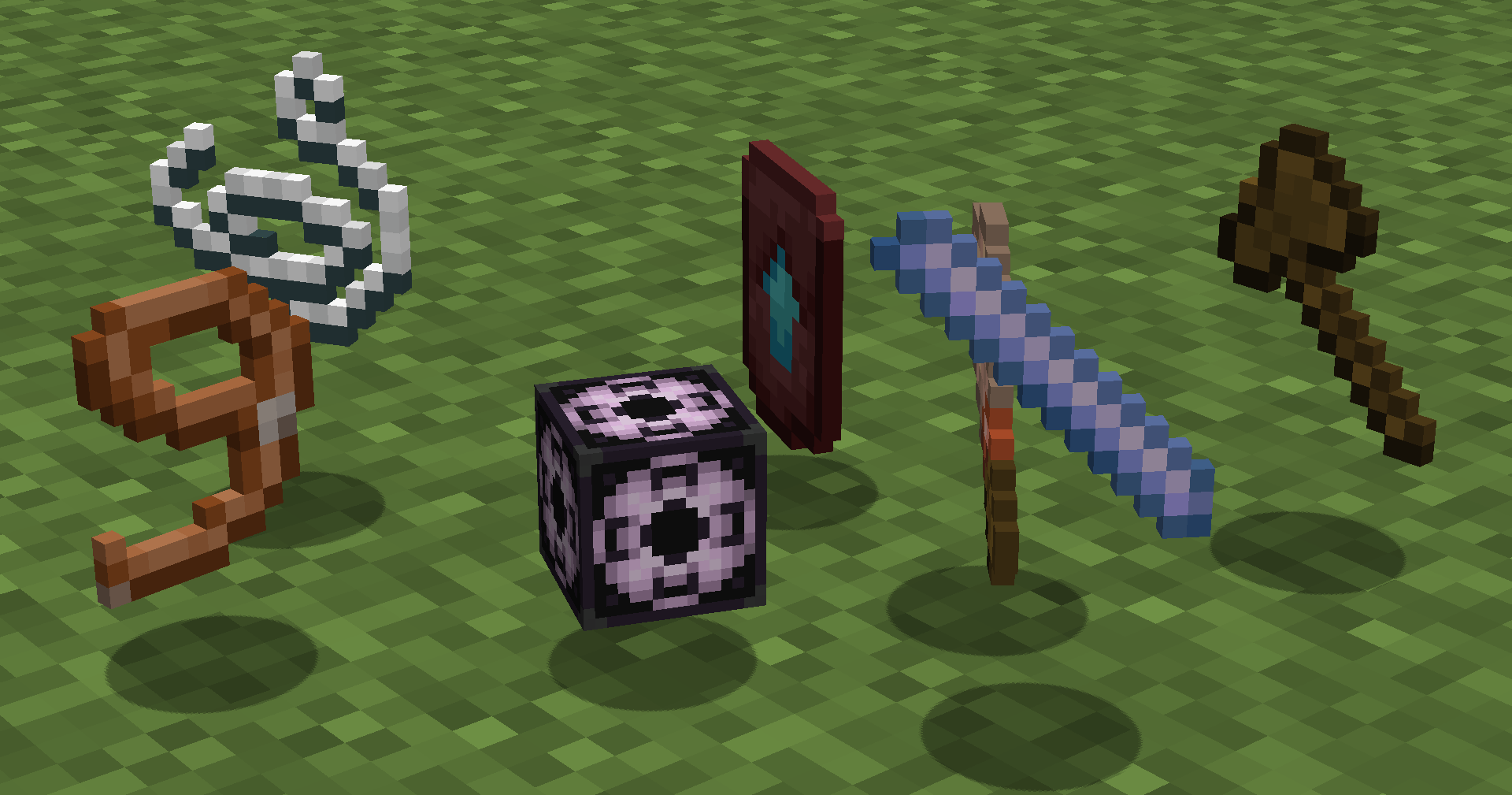 Automatically run functions based on your actions. Each tool has several modes. Throw (default:Q) to change mode, put in offhand (default:F) to change tool.
How to use (X) tool?
Look at the item tooltip, or open the detailed documentation using /function we:help.
Automatically run functions based on your actions. Each tool has several modes. Throw (default:Q) to change mode, put in offhand (default:F) to change tool.
How to use (X) tool?
Look at the item tooltip, or open the detailed documentation using /function we:help.
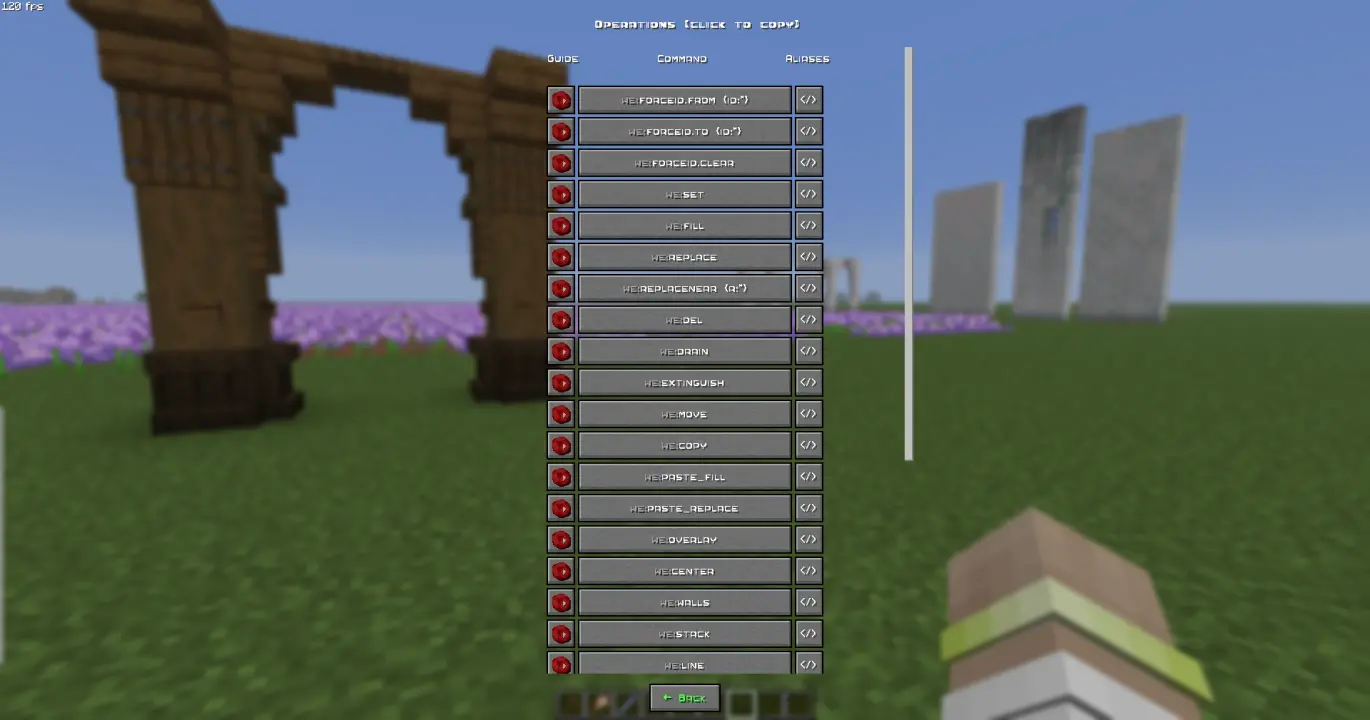 Manual use. /function we:help for more info.
How to use (X) command?
All the user commands are available on the path /function we:. To view each command description, run /function we:help. You need OPerator rights in the world where you want to use the datapack.
Manual use. /function we:help for more info.
How to use (X) command?
All the user commands are available on the path /function we:. To view each command description, run /function we:help. You need OPerator rights in the world where you want to use the datapack.
Basic
Command Aliases Description help h Opens help page settings config Opens settings page wand w get Gives you tool for selecting regions. You can take wooden axe from your creative inventory and it will become wand. Click left mouse button to set the first point of the region, Click right mouse button to set the second point of the region. Both points create a region between them. Read tooltips for more info about using tools and modes. uniwand Opens UI with all the tools for you to choose flight Opens the flight settings menu pin Allows you to pin up to 10 custom commands above the Axis chat menu, and use them with a mouse click. Format: /function we:pin {slot:2,cmd:'say Hello World!'} <-- "cmd" without backslash (/) uninstall unins Opens the datapack uninstall menuRegions
Command Aliases Description 1 Set the first point of the region. Both points create a region between them 2 Set the second point of the region. Both points create a region between them expand Expands the region by 1 block in the direction you are facing. You can use resize tool unstead contract Expands the region by 1 block in the direction you are facing. You can use resize tool unstead clear c Clears all selected points and regionsOperations
Command Aliases Description forceid.from {id:*} From = the block that is normally taken from the left hand. Allows you to force the block ID, including the blockstate, when executing all commands that require a block ID. forceid.to {id:*} To = the block that is normally taken from the right hand. Allows you to force the block ID, including the blockstate, when executing all commands that require a block ID. forceid.clear Clear = removes the Force ID from both storages. Allows you to force the block ID, including the blockstate, when executing all commands that require a block ID. set Replaces all blocks in the region with the one you are holding in main hand. If you have no blocks in specified slot, it will be considered as air fill Fills all air blocks in the region with the one you are holding in main hand. If you have no blocks in specified slot, it will be considered as air replace Replaces all blocks in the region from the one you are holding in off hand with the one you are holding in main hand. if you have no blocks in specified slot, it will be considered as air replacenear Replaces all blocks in radius ({r:1} or {r:5}, etc.) around player from the one you are holding in off hand with the one you are holding in main hand. if you have no blocks in specified slot, it will be considered as air delete del Deletes everything in the region drain Removes liquids from the selected region extinguish Removes fire from the selected region move Moves the region by 1 block in the direction you are facing copy Saves selected area to the buffer. Use together with paste. Copying/Pasting buffer differs from clonebrush, as you can do it between dimensions. The build pastes exactly like it was when you used copy. On the other side, clonebrush clones it from place 1 to place 2 in real time paste.fill Pastes saved area from buffer to the player and blends it with blocks/terrain. Use together with 'copy' paste.replace Pastes saved area from buffer to the player and deletes all the blocks/terrain on the way. Use together with 'copy' overlay Overlays all blocks in your selection with one you are holding in main hand center Finds a center of your region and places 1 to 8 blocks of you are holding in main hand. If you have no blocks in specified slot, it will be considered as glass. If there are already solid blocks in the cetnter of the region, only particles will be displayed walls Replaces all outline blocks in the region with the one you are holding in main hand. If you have no blocks in specified slot, it will be considered as air stack Stacks the region in the direction you are facing line Builds a line of block you are holding in main hand from point 1 to point 2. If you have no blocks in specified slot, it will be considered as glass rotate Rotates the region by the specified number of degrees. Affects entities freerotate Rotates the region without size or angle restrictions (diagonal rotation is possible). Does not affect entities. flip Mirrors the selected area in the direction of view. Affects entities cut Copies a region to the clipboard and cuts it out circle Draws a circle with the specified radius ({r:1} or {r:5}, etc.) hcircle Similar to we:circle, but draws a hollow circle instead of a filled one. triggerupdates upd Triggers updates of all blocks in the selected region setnoise.perlin Replaces the selected area with Perlin noise. The noise can consist of two blocks: the one you hold in your left and one you hold in your right hand. If one of your hands is empty, the block will be considered as air. setbiome Sets the specified biome to the selected region. fillbiome Fills the selected region with the specified biome. regenerate regen Reverts everything within the selection box to its original state based on the world seed.History
Command Aliases Description undo Cancels previous action redo Redoes previous action (use after Undo) clearhistory Deletes all previously saved actions and clears history buffers. Clearing history is recommended when you want to make a 'checkpoint' during building, so you don't accidently undo/redo old actions you don't want toBrushes
Command Aliases Description b/wand b/w b/get Gives you brush tool. You can take regular brush from your creative inventory and it will become brush tool. Left-click to choose block, Right-click to paint. Read tooltips for more info about using tools and modes.Displays
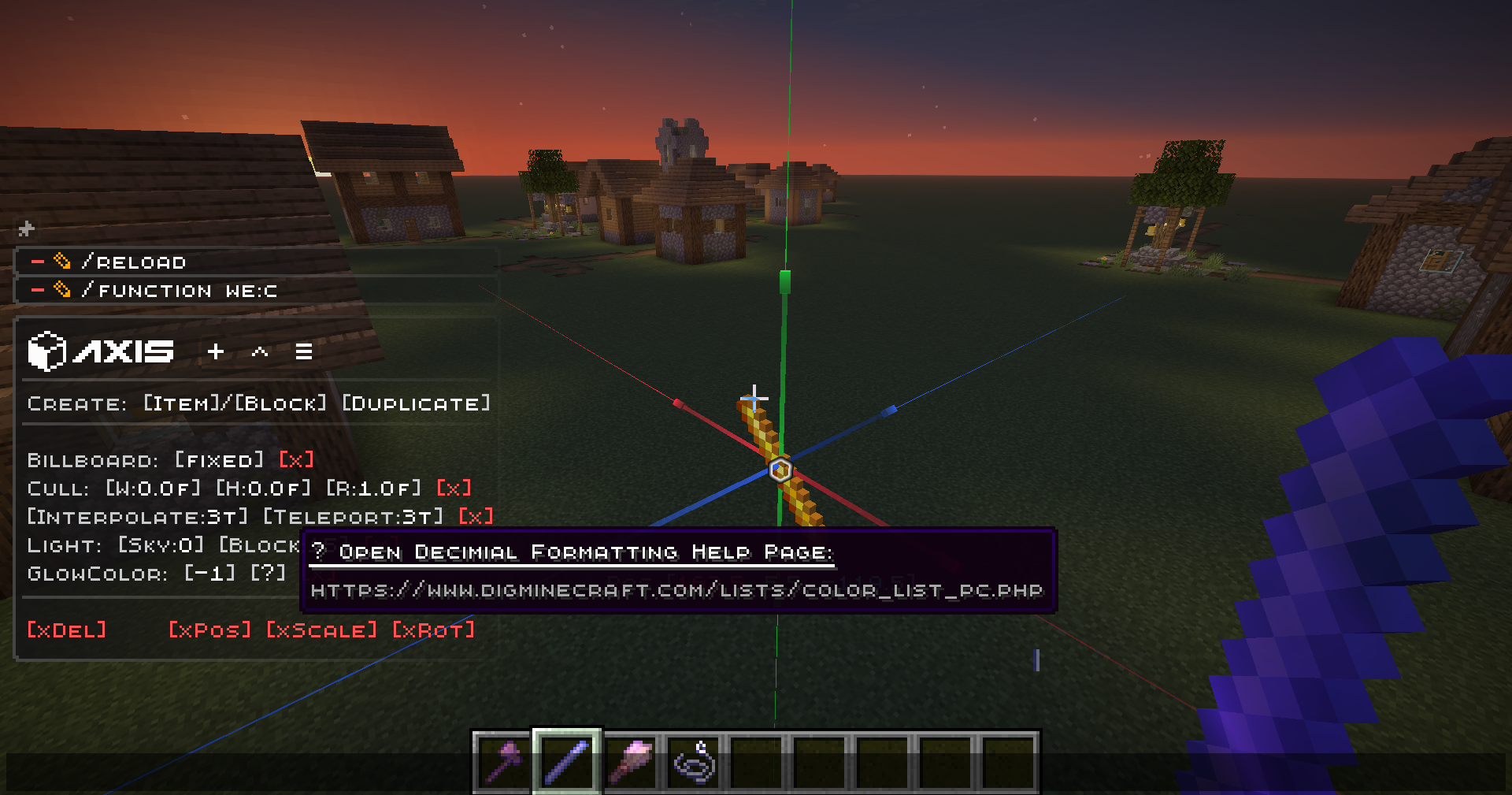
ℹ This is much more convenient to use the quick menu to modify displays than to write these commands manually. To open the menu, take the display modification tool (/function we:d/w) and select the desired display.
Command Aliases Description d/wand d/w Gives a display modification tool d/create_block_display Creates a block display entity from the item in your main hand. If the chosen item doesnt have a block state, null display (existing entity with size 0,0 and no visuals) will be summoned d/create_item_display Creates an item display entity from the item in your main hand. If the chosen item doesnt have an item state, null display (existing entity with size 0,0 and no visuals) will be summoned d/duplicate Creates the exact copy of the selected display entity d/billboard/center Display will automatically rotate towards the player on both axes d/billboard/fixed Display will NOT automatically rotate towards the player d/billboard/horizontal Display will automatically rotate towards the player on X and Z axes d/billboard/vertical Display will automatically rotate towards the player on Y axis d/brightness/block Sets block brightness (light level) override for display d/brightness/sky Sets sky brightness (light level) override for display d/culling/height Sets display hitbox height. Setting the culling hitbox allows not to render the display entity if it is outside the border of the screen. For optimization purposes we:d/culling/width Sets display hitbox width. Setting the culling hitbox allows not to render the display entity if it is outside the border of the screen. For optimization purposes we:d/culling/range Sets the maximum distance from player in proportion to player's entity rendering distance (default=1) at which the entity will be rendered. (Not in blocks! If the player's entity rendering distance = 8 chunks -> the value 1 = 8 chunks, the value 0.5 = 4 chunks, etc.) d/glow_color Changes the color of the glow effect outline. Decimial format d/interpolation_ticks Sets the amount of ticks needed to interpolate from state1 to state2 in game ticks (State = scale, rotation, etc.) (1 second = 20 game ticks) d/teleportation_ticks Sets the amount of ticks needed to interpolate from pos1 to pos2 in game ticks (Pos = xyz position) (1 second = 20 game ticks) d/reset_brightness Resets block and sky brightness overrides d/reset_culling Resets culling width, height, and view range d/reset_glow Resets glow color and removes the glow outline d/reset_interpolations Resets interpolation and teleportation duration d/reset_position Resets position / snaps entity to the block grid d/reset_rotation Resets rotation. (resets only the entity format rotation, not the quaderion format rotation) d/reset_scale Resets scale d/remove delete Deletes the selected display entitySmart Forceloading - edit millions of blocks even in unloaded chunks safely.
50+ Million blocks successfully replaced (in one go)
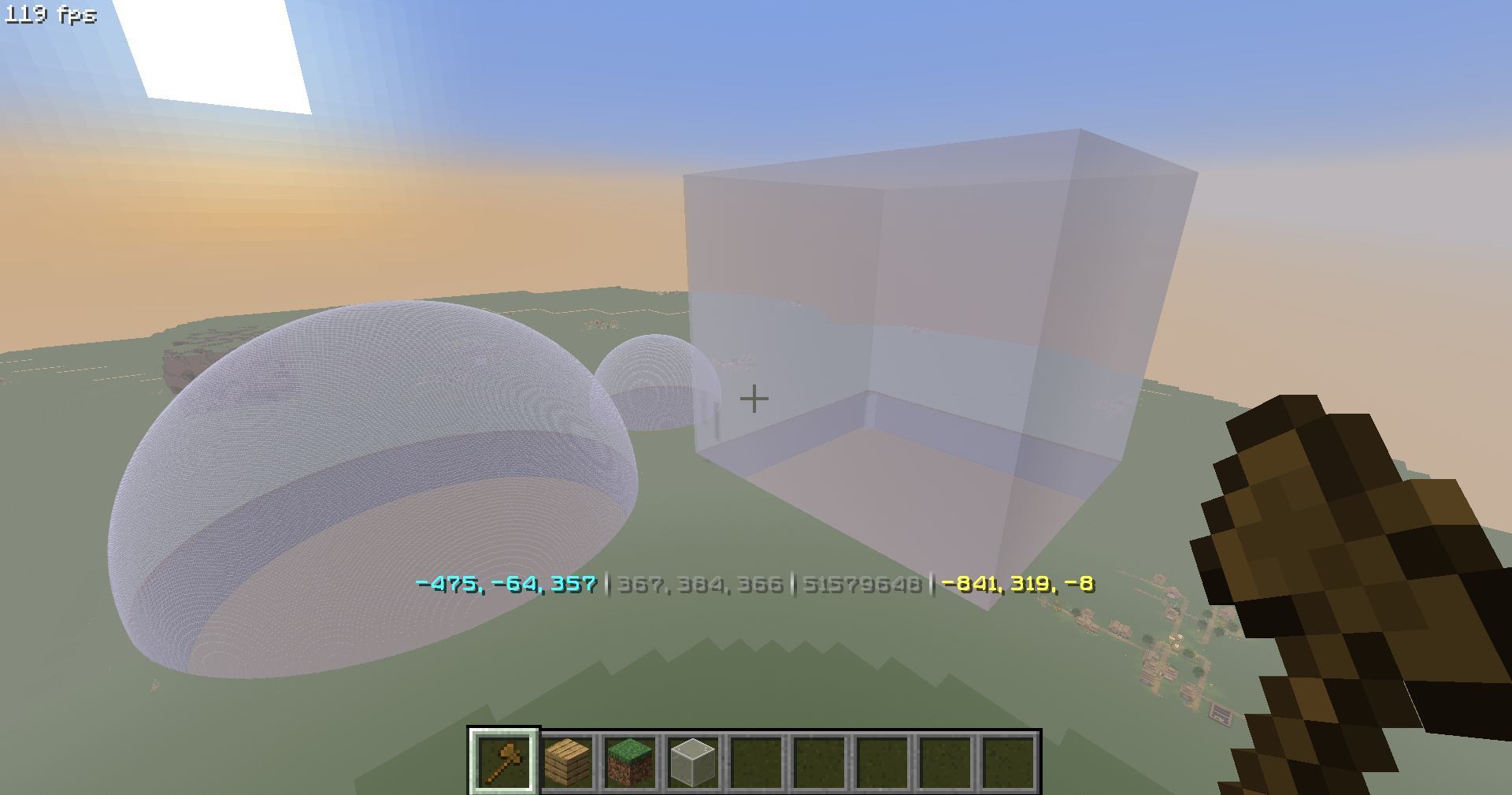
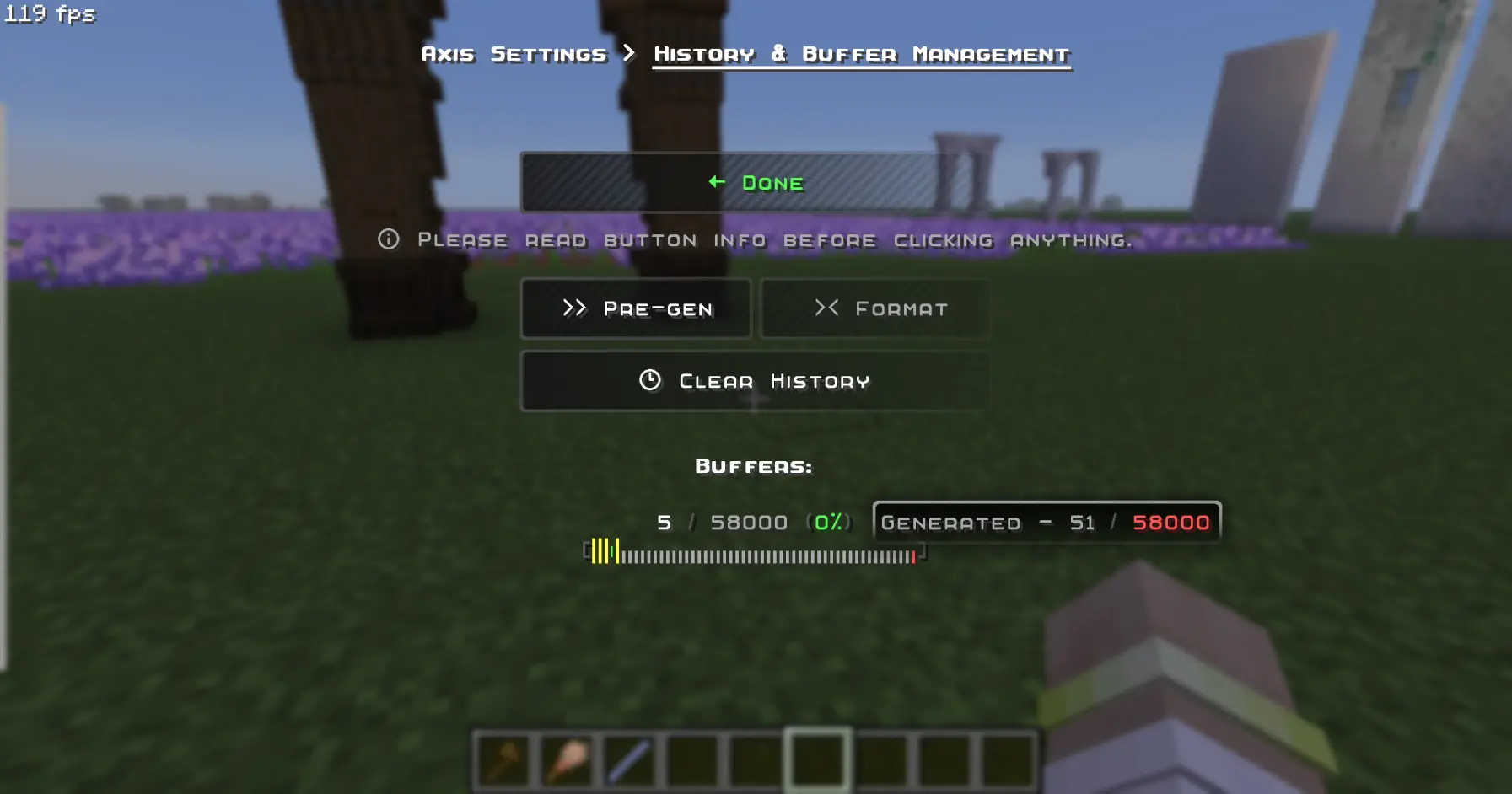
Undo / Redo - so you could revert up to 58.000 actions. (in a row)
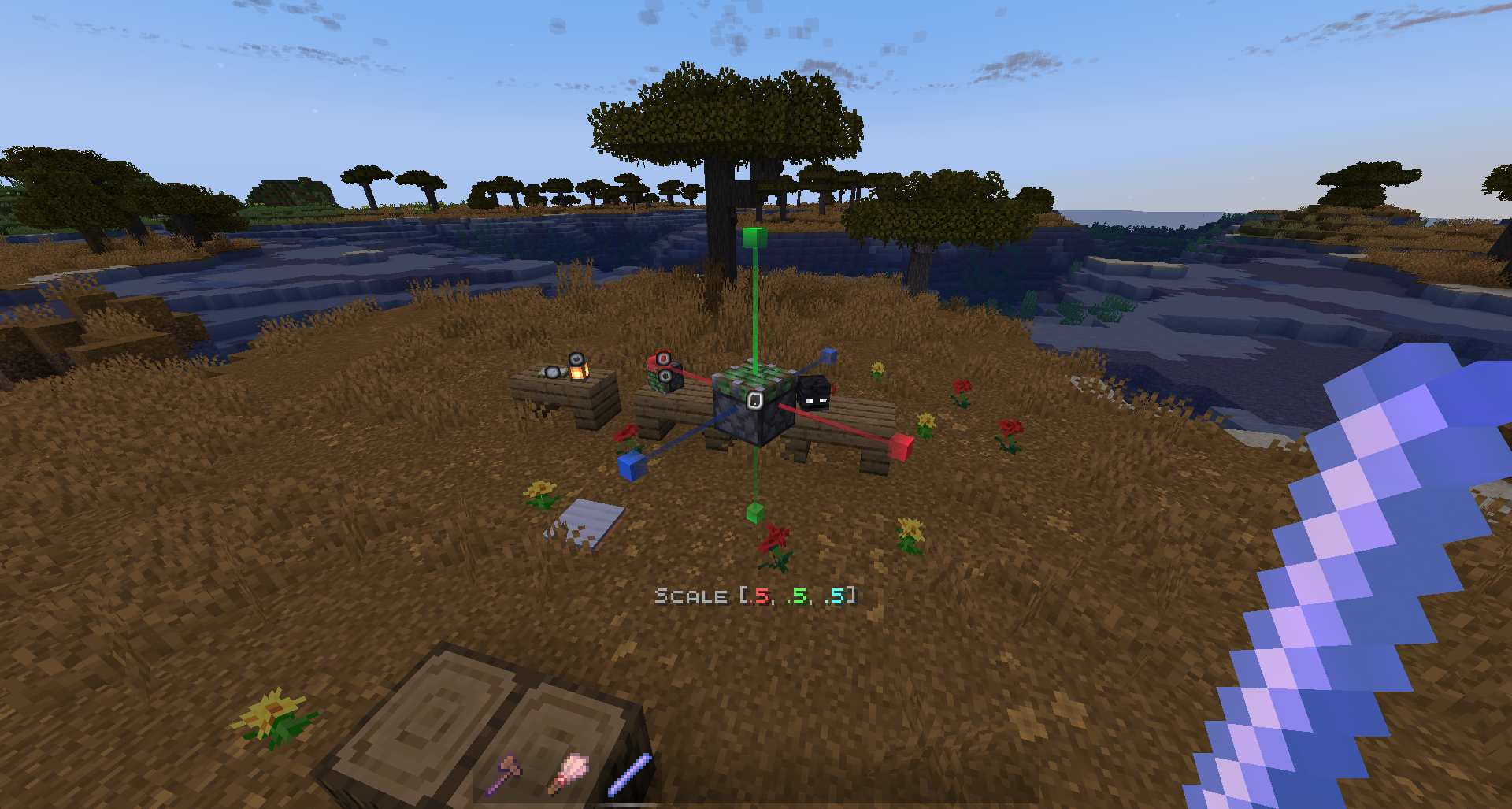
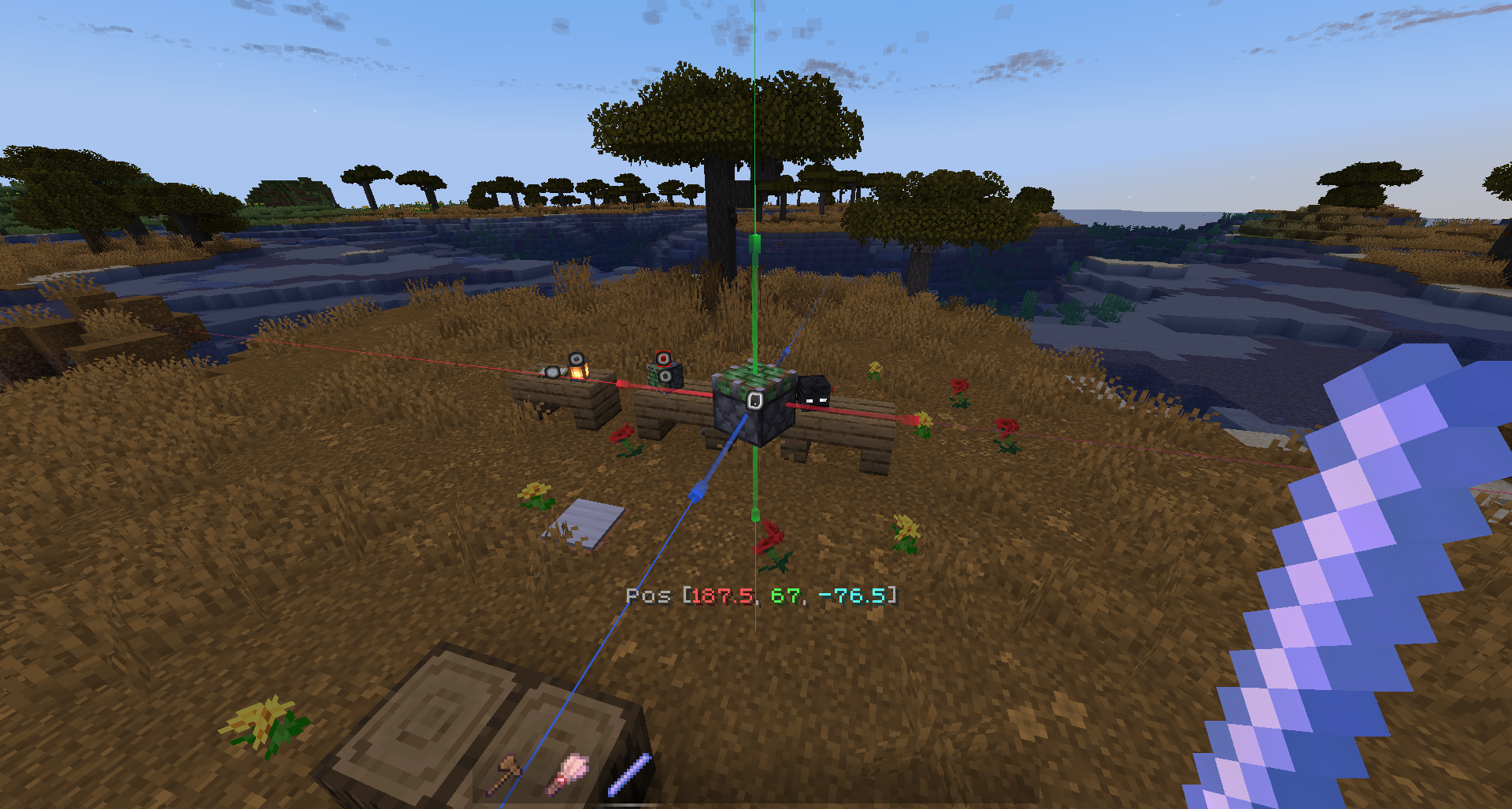
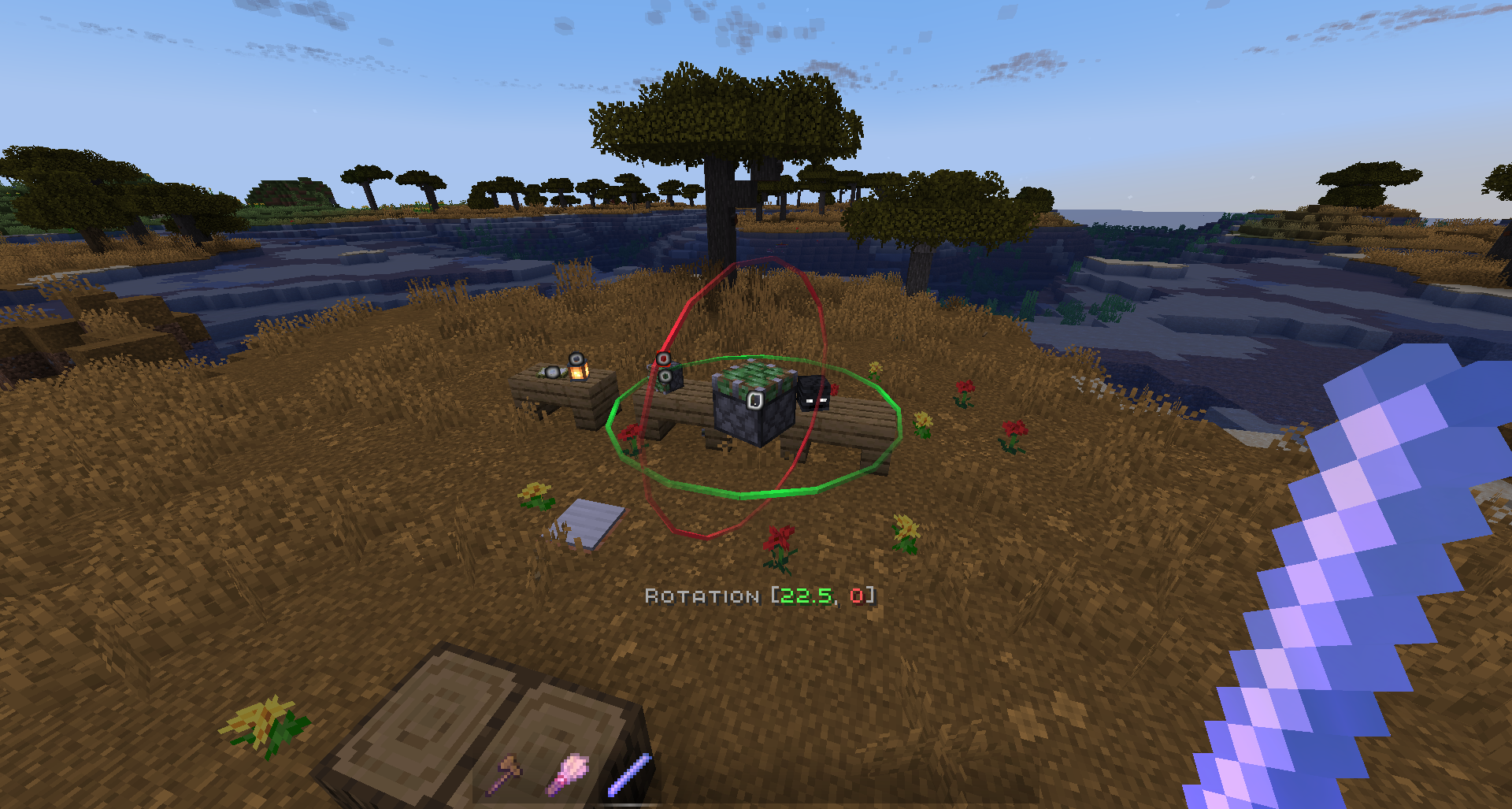
Display-Entity Modification - Create and edit models directly in-game.
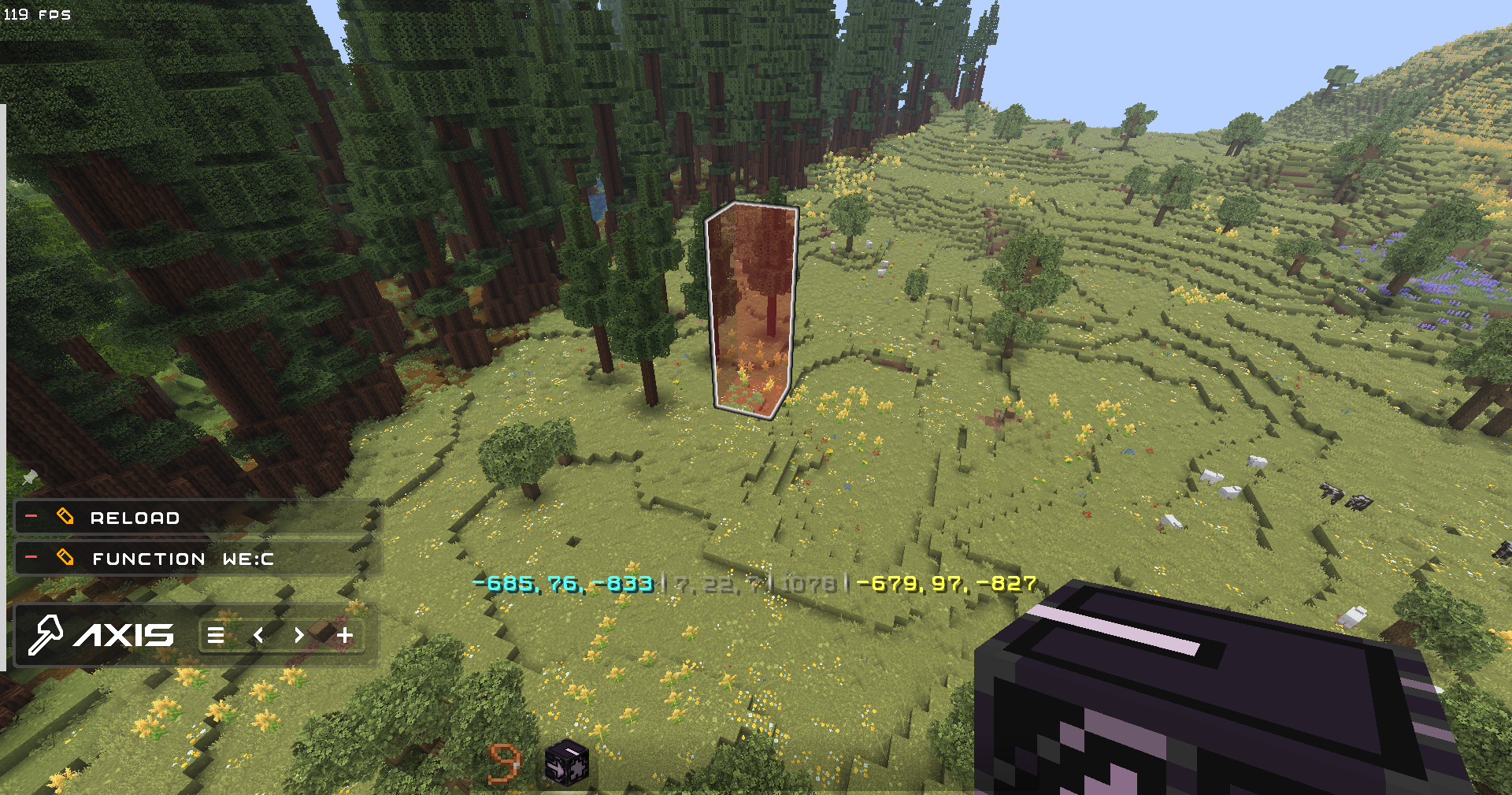
Every command Supports Custom & Modded blocks, biomes, and dimensions.
Pasting trees from Biomes O Plenty mod, consisting of modded blocks, using the PasteBrush tool:
✨ QOL
- Settings to disable all the features you don't like, and Help Menu containing descriptions for every feature and command in the datapack
- Ghost-Flight and Boost-Flight creative abilities
- Pinning Commands to the chat for further use in 1 click!
- Fast-Typing via chat-menu - you don't have to write "/function:we" every time - just click 1 button!
- Multi-Hotbar - quickly swap 9 independent hotbars
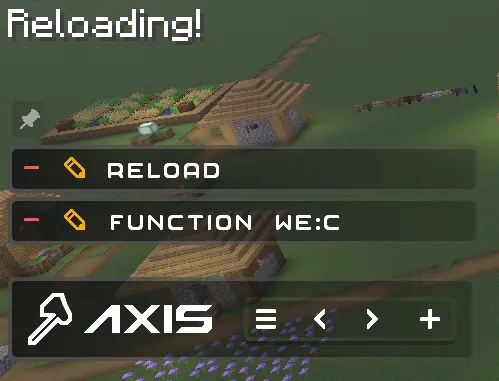
- Hot-Reload - Press key combination for instant /reload: useful for datapackers and mapmakers
🎨 Visuals & Sounds
- Color-Themes - Customize the interface appearance with presets or HEX-code colors
- Highlighting Markers (entities) with text displays
- Nice Sound Effects & Visual Previews for actions
🌐 Localizations
Don't use Google in parallel with building!
- English (en_us) - GamerGoBC
- Deutsch (de_de) - Corrwinn
- Русский (ru_ru) - GamerGoBC
- More coming soon... join the Discord server if you want to help!
📚 Guides
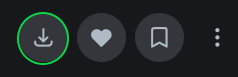
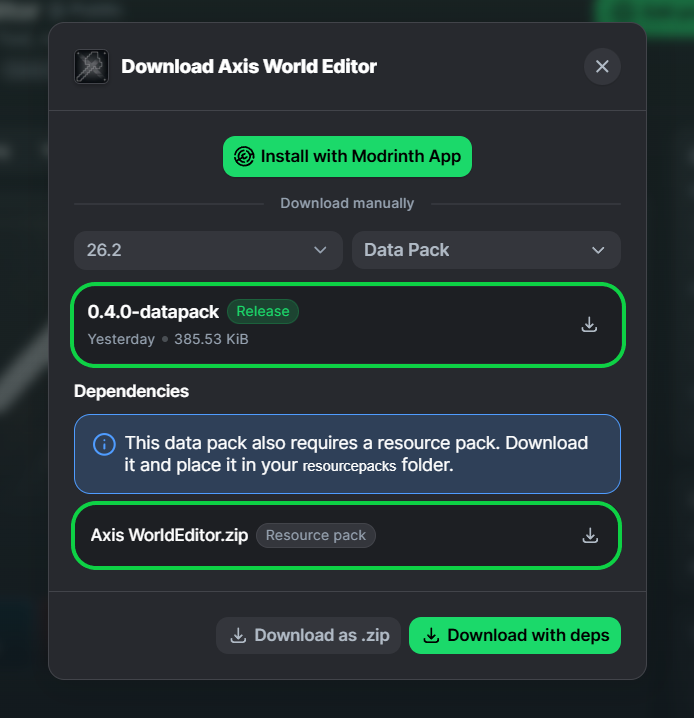
1. Look at the top right corner of the screen and click "Download".
2. Select your game version, and platform "Datapack".
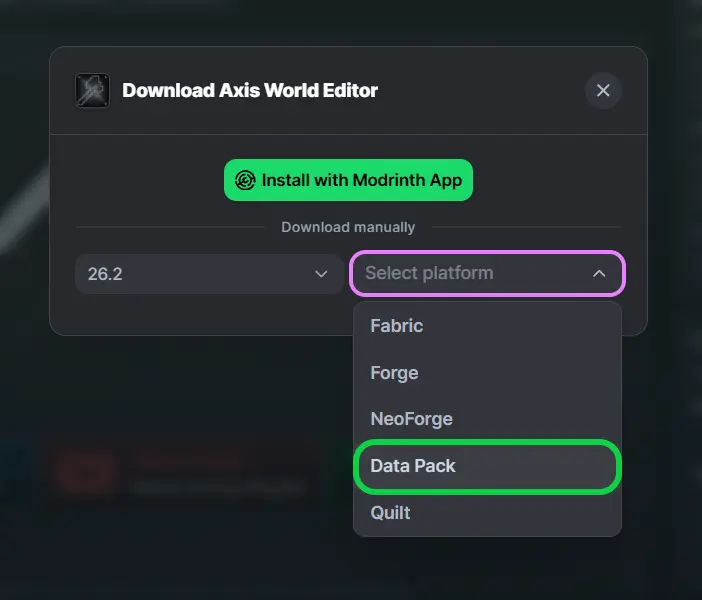
3. You will see two files for downloading: Datapack and Resourcepack - download them.
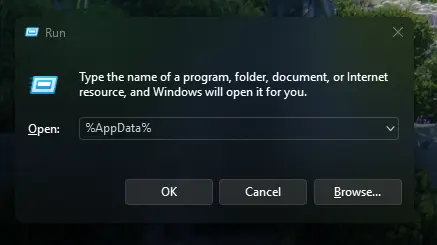
4. Press [Win] + [R] and type %AppData% in the search box and click [OK]
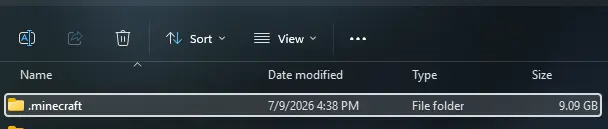
5. Look for the .minecraft folder and open it.
6. Put Datapack in saves\YourWorld\datapacks
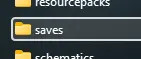
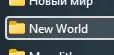
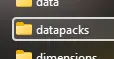
7. Put Resourcepack in resourcepacks and choose it in - game: (ESC>settings>resourcepacks)

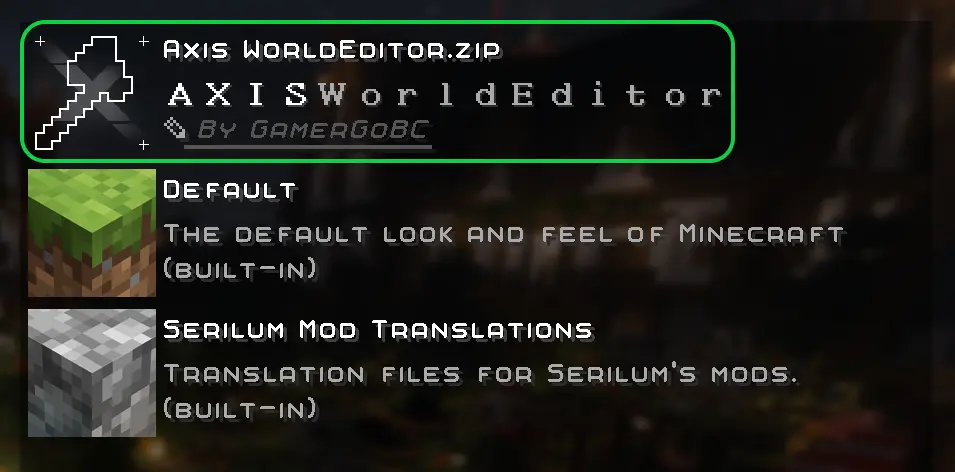
8. Rejoin your world or type /reload in chat

Compatibility
Mod Loaders
Game Versions
Recommended Gear
AffiliateHardware and extras that pair well with this mod.
As an Amazon Associate I earn from qualifying purchases.
Screenshots
Similar Mods
Advanced Wall Climber API
A powerful API for Minecraft mods that enables advanced wall climbing mechanics for entities. This API allows mod develo...

Super Fast Math
A lightweight fabric mod that changes the sin and cos for better math.
Better Punching
A mod, overhauling punching and breaking mechanics in a popular block game!
Lightweight Inventory Sorting
Lightweight client-side inventory sorting with no extra fluff
Another Flashlight Mod
Add flashlights !
Better Slimes - RotN Edition
A modification of Better Slimes for the Rebirth of the Night (RotN) modpack.
