
Call Your Parrot
ModEasily call (whistle) your parrot with a goat horn to teleport it to you
Type
Mod
Modrinth Downloads
12,911
Modrinth ID
gkuQygoB
Last Updated
Sep 12, 2026
Description





Easily call your parrot with a goat horn whenever you need it
The parrot can be anywhere, it always works to teleport it to you, even in unloaded chunks
There's currently a bug, where if the parrot you want to call is too far away it will be invisible after the teleport
--> to fix that you have to rejoin the game
How it works
1. Tame a parrot
2. Give the parrot any name (it can not include special characters like # or ')
3. Hold any goat horn you want in your hand
4. Sneak and look at the parrot for 4 seconds
4. You will then get a horn that looks enchanted and has the name of the parrot
5. Whenever you use the horn, it will teleport to you
--> Only the owner of the parrot can get the goat horn + use the goat horn to call the parrot
Showcase
Guides
If something doesn't work, feel free to join the discord server
How to install a datapack in singleplayer
-
Open Minecraft
Launch the game. -
Create a New World
Navigate to "More" and click on "Data Packs".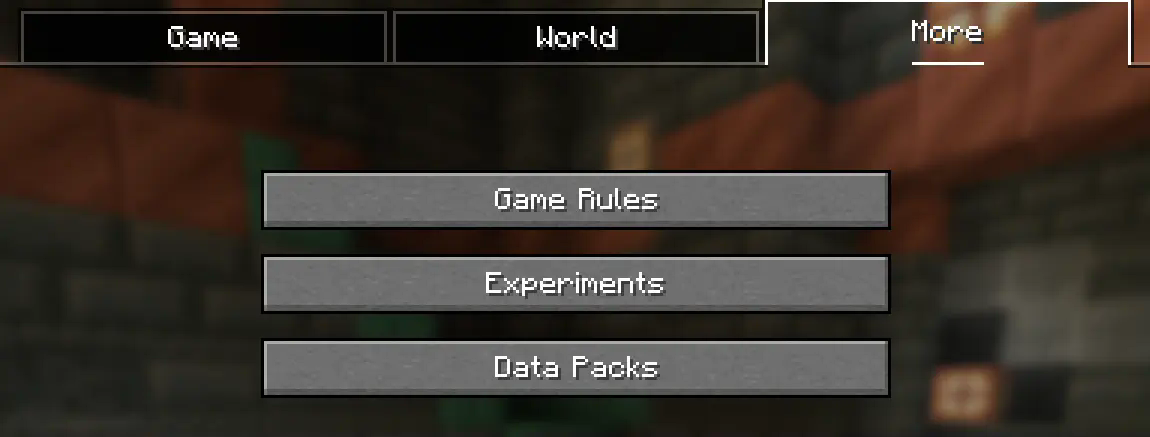
-
Add the Datapack
Drag the datapack (a .zip file or directory) into the Minecraft window.- A confirmation screen will appear. Click "Yes".
-
Activate the Datapack
Move the datapack to the right-hand side of the screen by clicking the triangle on its icon (visible when hovering over it).
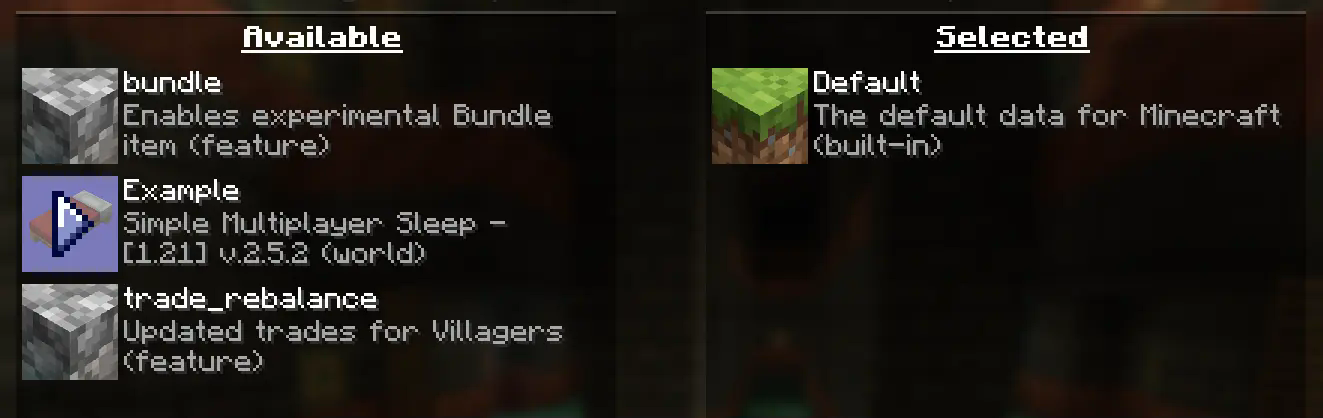
- Complete World Creation
- Click "Done" at the bottom of the screen.
- Continue creating your world and click "Create New World".
⚠️ IMPORTANT ⚠️
The datapack only works if cheats are enabled.
You can verify the datapack is active by typing:
/datapack list enabled
This command should list an entry named [file/<your datapack file/directory name>].
How to Install a Datapack in an Existing Singleplayer World
-
Open Minecraft
Launch the game. -
Select Your World
- Choose the world you want to install the datapack for.
- Click "Edit", then "Open World Folder".
-
Add the Datapack
- Open the folder named datapacks.
- Place the datapack into this folder. It should be a .zip file or a directory.
-
Reload the World
- If you are in the world during installation, type /reload in the chat or press F3 + T to reload resources.
(Make sure cheats are enabled.)
- If you are in the world during installation, type /reload in the chat or press F3 + T to reload resources.
⚠️ IMPORTANT ⚠️
The datapack only works if cheats are enabled.
You can verify the datapack is active by typing:
/datapack list enabled
If you encounter this issue, here is a step by step guide on how to enable Cheats/Admincommands permanently after you have already created a Minecraft world.
⚠️ Before you begin, you should save and backup your world in case something goes wrong.
(I will not take any responsibility for any corrupt worlds. Do this at your own risk!)
But don't worry this works without any problems.
If you don't want to change this permanently check out this guide.
1. You need NBTExplorer
NBTExplorer is an open-source NBT editor for all common sources of NBT data. It's mainly intended for editing Minecraft game data.
2. Open NBTExplorer and open your Minecraft world, where you want to enable Cheats/Admincommands.

3. Navigate to:
- <Your Minecraft World>
- level.dat
- Data
- allowCommands

4. Click on "Edit Tag Value"

5. Change the Value from 0 to 1 and click "OK"

6. Now click on "Save All Modified Tags"

That's it. You are done. You can now join your world and check if you have permission to change your gamemode, for example.
Enabling Cheats Temporarily After World Creation
If you encounter this issue, here is a step-by-step guide on how to enable Cheats/Admin commands temporarily after you have already created a Minecraft world.
-
Join Your World
Open your single-player world and press "Escape". -
Open to LAN
Click on "Open to LAN".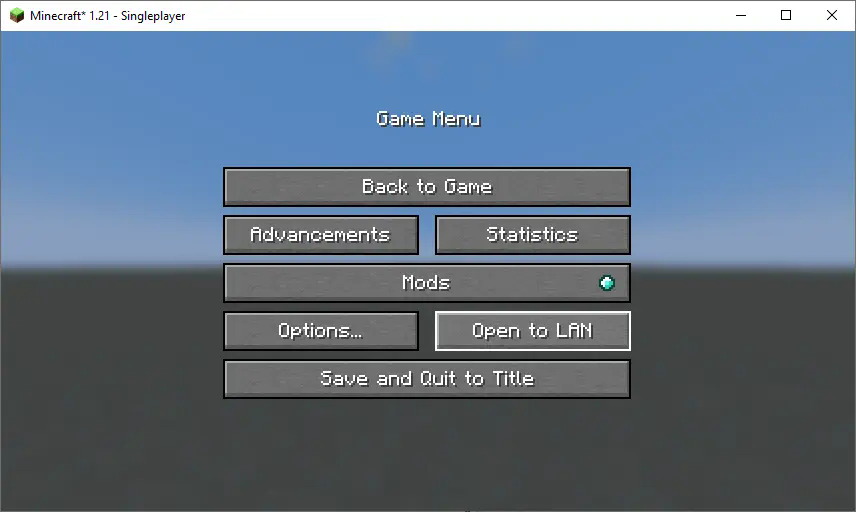
-
Allow Commands
Set "Allow Commands" to ON.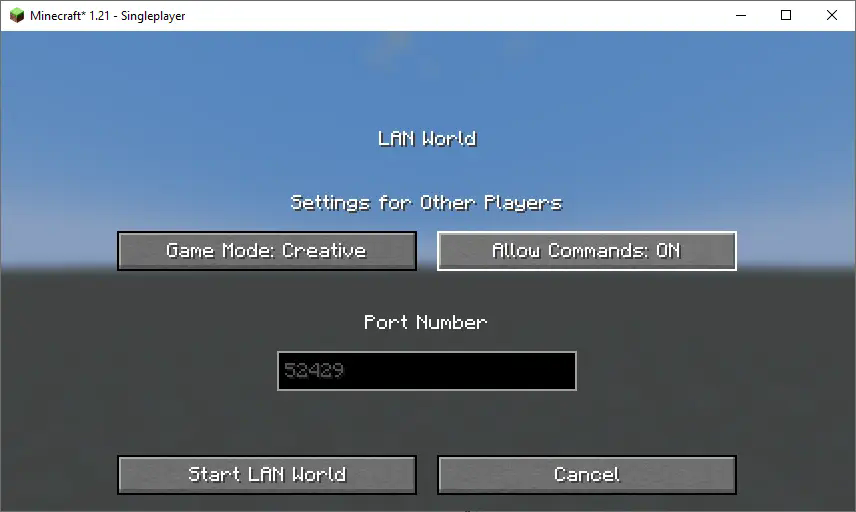
-
Start LAN World
Click "Start LAN World" to apply the changes.
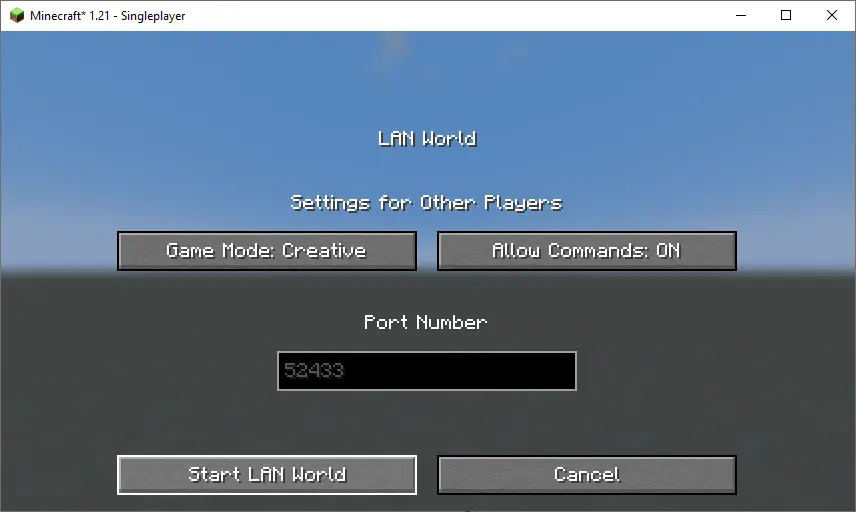
Now, you should be able to use commands like changing your gamemode. Keep in mind that this is only temporary and will need to be done every time you join the world.
How to Install a Datapack in Multiplayer
-
Open Your Server Folder
Navigate to your server folder, then open the folder for the world you wish to install the datapack in (default: world). -
Add the Datapack
- The datapack should be a .zip file.
- Place the datapack into a folder named datapacks inside the world folder.
-
Reload the Server
- Type /reload from the console or as a level 3 operator if the server was running during the installation.
How to Uninstall a Datapack from Your Singleplayer World or Server
-
Run the Uninstall Command
For my datapacks, run the command:
/function datapack_name:uninstall -
Delete the Datapack
- Delete the datapack from the folder you placed it in.
- Alternatively, you can run:
/datapack disable [file/your data pack file/directory name]
-
Reload the World or Server
After deleting or disabling the datapack, run:
/reload
Step-by-Step Guide to Installing a Mod on a Minecraft Server
-
Download the Mod
- Make sure to download the correct version of the Mod that matches your server's Minecraft version.
- Important: The mod file should be a .jar file.
-
Ensure No Datapacks or Other Mods Conflict
- Do not have both a datapack and a mod installed at the same time, as they may conflict.
- Only install one or the other, depending on your server's setup.
-
Locate the Mods Folder
- Open your server's root directory.
- Inside this directory, find the folder named mods.
- If the mods folder doesn't exist, create one.
-
Install the Mod
- Paste the downloaded .jar file for the Mod into the mods folder.
-
Restart the Server
- After adding the Mod to the mods folder, restart your Minecraft server for the mod to be activated.
-
Verify Mod Installation
- Once the server has restarted, join the server and check if the Mod is working.
- You can use /mods or a similar command (depending on the mod) to see if the Mod has been successfully loaded.
Additional Tips
- Backup Your Server: Always create a backup before installing the Mod to avoid data loss in case something goes wrong.
- Ensure Mod Compatibility: Check that the Mod is compatible with your Minecraft server version and any other mods you have installed.
Compatibility
Mod Loaders
Game Versions
Recommended Gear
AffiliateHardware and extras that pair well with this mod.
As an Amazon Associate I earn from qualifying purchases.
Similar Mods
![Way Too Many Ingredients [Cobblemon Sidemod]](https://media.forgecdn.net/avatars/1204/649/638782567139346119.jpg)
Way Too Many Ingredients [Cobblemon Sidemod]
Craft tasty sandwiches with special Pokémon-boosting powers in your Cobblemon adventure!

Netherite But Cheaper
Doesn't change much at all other then some recipes to make netherite ever so slightly cheaper

Drive-By-Wire: Typewriter
Drive-By-Wire Addon, add Linked Typewriter style control, making each key a wire signal channel.

Hostile Neural Network - TS Edition
An improved version of the original Hostile Neural Network
Epic RPG: Average DPS
Real-time global damage meter

Put A Plug In it! (PAPI)
A small mod that fixes Memory Leak issues, optimizes Memory Usage, and increases version/loader support for features of...