
Wireless Redstone
Modby Razzokk
Wireless Redstone adds blocks and items to use redstone remotely
Type
Mod
CurseForge Downloads
2,805,055
CurseForge ID
409660
Modrinth Downloads
421,551
Modrinth ID
2mBYHHZ5
Last Updated
Sep 5, 2026
Description
 Wireless Redstone adds Redstone components to Minecraft, allowing Redstone components to be controlled remotely. The concept works like any transceiver functionality.
Transmitter and receiver blocks behave in a lazy-loaded manner with respect to redstone updates in unloaded chunks. This means that unloaded chunks will not be actively loaded to make the redstone update, but as soon as the receiver is loaded, its redstone state will be updated to match that of its corresponding transmitter.
**New**:
- P2P Transmitters and Receivers, added with version 1.2.0
Currently wireless redstone is dimensional but this might change in the future.
## Content
### Redstone Transmitter & Receiver
Wireless Redstone adds Redstone components to Minecraft, allowing Redstone components to be controlled remotely. The concept works like any transceiver functionality.
Transmitter and receiver blocks behave in a lazy-loaded manner with respect to redstone updates in unloaded chunks. This means that unloaded chunks will not be actively loaded to make the redstone update, but as soon as the receiver is loaded, its redstone state will be updated to match that of its corresponding transmitter.
**New**:
- P2P Transmitters and Receivers, added with version 1.2.0
Currently wireless redstone is dimensional but this might change in the future.
## Content
### Redstone Transmitter & Receiver

 The **Redstone Transmitter** transmits a signal to the Redstone Network when it is turned on by a Redstone signal and sets all receivers on the same frequency to high as well. If there is more than one transmitter transmitting on the same frequency, all receivers on that frequency will be high as long as at least one transmitter on that frequency is on. This block can be right-clicked to set the frequency.
The **Redstone Receiver** will output a Redstone signal of 15 as long as there is at least one active transmitter on the same frequency. This block can be right-clicked to set the frequency.
---
### P2P Transmitter & Receiver
The **Redstone Transmitter** transmits a signal to the Redstone Network when it is turned on by a Redstone signal and sets all receivers on the same frequency to high as well. If there is more than one transmitter transmitting on the same frequency, all receivers on that frequency will be high as long as at least one transmitter on that frequency is on. This block can be right-clicked to set the frequency.
The **Redstone Receiver** will output a Redstone signal of 15 as long as there is at least one active transmitter on the same frequency. This block can be right-clicked to set the frequency.
---
### P2P Transmitter & Receiver

 In addition to the classic frequency based transmitter and receiver pair, there are now P2P transmitters and receivers. Instead of "connecting" them via a frequency, they are **directly** connected with the help of the [Linker](#Linker), thus the name P2P (point to point). This means that there *cannot* be any frequency clashes with other players. But you can only connect one transmitter to one receiver and vice versa.
These components have two block states:
- `powered`: Indicating whether the block is being powered (transmitter) or powers something (receiver)
- `linked`: Indicating if the block is linked with its counterpart. This property can be tested for by using a comparator. It will output redstone power of 15 if linked, and 0 otherwise.
Once the link between a transmitter and receiver pair is established, the `linked` property changes accordingly and redstone changes on the transmitter are reflected by the connected receiver. In case one of the two blocks gets destroyed or relinked to another block, the link of its counterpart is terminated.
There is however a unique catch to the `linked` property. Once a linked p2p block gets unloaded it will visually be unlinked from its counterpart. The redstone state stays the same and the actual link between them is still stored and re-established once they are both loaded again. In case the other block gets destroyed or re-linked in the meantime the block will unlink completely as soon as it tries to connect to the other block again (meaning both must be loaded). This behavior can for example be used detect if certain chunks are loaded or unloaded. I'd like to see what you can come
up with using this feature.
---
### Remote
In addition to the classic frequency based transmitter and receiver pair, there are now P2P transmitters and receivers. Instead of "connecting" them via a frequency, they are **directly** connected with the help of the [Linker](#Linker), thus the name P2P (point to point). This means that there *cannot* be any frequency clashes with other players. But you can only connect one transmitter to one receiver and vice versa.
These components have two block states:
- `powered`: Indicating whether the block is being powered (transmitter) or powers something (receiver)
- `linked`: Indicating if the block is linked with its counterpart. This property can be tested for by using a comparator. It will output redstone power of 15 if linked, and 0 otherwise.
Once the link between a transmitter and receiver pair is established, the `linked` property changes accordingly and redstone changes on the transmitter are reflected by the connected receiver. In case one of the two blocks gets destroyed or relinked to another block, the link of its counterpart is terminated.
There is however a unique catch to the `linked` property. Once a linked p2p block gets unloaded it will visually be unlinked from its counterpart. The redstone state stays the same and the actual link between them is still stored and re-established once they are both loaded again. In case the other block gets destroyed or re-linked in the meantime the block will unlink completely as soon as it tries to connect to the other block again (meaning both must be loaded). This behavior can for example be used detect if certain chunks are loaded or unloaded. I'd like to see what you can come
up with using this feature.
---
### Remote
 The **Remote** is the item form of the Transmitter, while holding right-click the remote signal goes high. But it comes with the addition of being able to copy the frequency of a Transmitter or a Receiver by sneaking and right-clicking it. By sneaking and right-clicking the remote (not on a transmitter/receiver), you can set the frequency through the GUI.
---
### Frequency Tool
The **Remote** is the item form of the Transmitter, while holding right-click the remote signal goes high. But it comes with the addition of being able to copy the frequency of a Transmitter or a Receiver by sneaking and right-clicking it. By sneaking and right-clicking the remote (not on a transmitter/receiver), you can set the frequency through the GUI.
---
### Frequency Tool
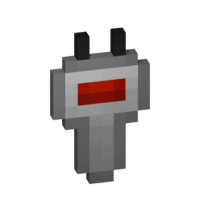 The **Frequency Tool** is a handy tool that makes it easy for you to take a frequency and set multiple transmitters and/or receivers to the same frequency. When holding it in your hand you can copy a frequency into the Frequency Tool by sneaking and right-clicking on a transmitter or receivers. To copy the now-stored frequency, simply right-click either a transmitter or receiver. By sneaking and right-clicking the frequency tool (not on a transmitter/receiver), you can set the frequency through the GUI.
---
### Frequency Sniffer
The **Frequency Tool** is a handy tool that makes it easy for you to take a frequency and set multiple transmitters and/or receivers to the same frequency. When holding it in your hand you can copy a frequency into the Frequency Tool by sneaking and right-clicking on a transmitter or receivers. To copy the now-stored frequency, simply right-click either a transmitter or receiver. By sneaking and right-clicking the frequency tool (not on a transmitter/receiver), you can set the frequency through the GUI.
---
### Frequency Sniffer
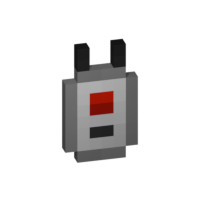 The **Frequency Sniffer** can be used as a tool to find active transmitters on a given frequency. As with other frequency tools too you can set the frequency either manually over the gui or copying it from a transmitter/receiver. When you right-click the sniffer tool all active transmitters on the set frequency within range are highlighted with a wireframe around the transmitter block. There is also a chat message that tells you where all the active transmitters are located at by showing the block position. If you are an admin/op, you can also click on the block position to teleport there. See example in the screenshot section. You can also change the highlight color in the configs!
---
### Linker
The **Frequency Sniffer** can be used as a tool to find active transmitters on a given frequency. As with other frequency tools too you can set the frequency either manually over the gui or copying it from a transmitter/receiver. When you right-click the sniffer tool all active transmitters on the set frequency within range are highlighted with a wireframe around the transmitter block. There is also a chat message that tells you where all the active transmitters are located at by showing the block position. If you are an admin/op, you can also click on the block position to teleport there. See example in the screenshot section. You can also change the highlight color in the configs!
---
### Linker
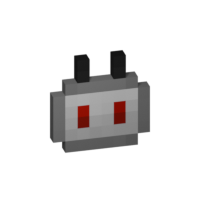 You use the **Linker** to link a **P2P Transmitter** and a **P2P Receiver** together. By sneaking and right-clicking on a block you select this block for linkage. The selected block is highlighted and can be seen through other blocks, the position of it can also be seen in the tooltip of the Linker item. The color of this highlight can be adjusted in the configs. To complete the link, simply right-click the blocks counterpart and you are done.
---
### Circuit
You use the **Linker** to link a **P2P Transmitter** and a **P2P Receiver** together. By sneaking and right-clicking on a block you select this block for linkage. The selected block is highlighted and can be seen through other blocks, the position of it can also be seen in the tooltip of the Linker item. The color of this highlight can be adjusted in the configs. To complete the link, simply right-click the blocks counterpart and you are done.
---
### Circuit
 The **Circuit** is for crafting purposes only.
## GUIs
**Note**: If you press `Shift` in the Frequency GUI, all values to change the frequency will be multiplied by 100 (so you can add/subtract 100 and 1000) or you can just type in your desired frequency manually. You can also change the color of the frequency display on a receiver/transmitter in the Configs. The same goes for highlighting with the Frequency Sniffer!
## Version & Loader Compatibility
In general Wireless Redstone *should* always be compatible between mod loaders. Meaning you can enter a world you began with **Forge** and later switch to **Fabric** and everything *should* still work with Wireless Redstone. The same is true for Minecraft versions. Newer versions of Minecraft and the mod *should* always be backwards compatible with older ones. That being said, always make a backup of your world before switching loaders or versions and [open an issue](https://github.com/Razzokk/wireless-redstone/issues) if something of Wireless Redstone isn't working anymore.
The **Circuit** is for crafting purposes only.
## GUIs
**Note**: If you press `Shift` in the Frequency GUI, all values to change the frequency will be multiplied by 100 (so you can add/subtract 100 and 1000) or you can just type in your desired frequency manually. You can also change the color of the frequency display on a receiver/transmitter in the Configs. The same goes for highlighting with the Frequency Sniffer!
## Version & Loader Compatibility
In general Wireless Redstone *should* always be compatible between mod loaders. Meaning you can enter a world you began with **Forge** and later switch to **Fabric** and everything *should* still work with Wireless Redstone. The same is true for Minecraft versions. Newer versions of Minecraft and the mod *should* always be backwards compatible with older ones. That being said, always make a backup of your world before switching loaders or versions and [open an issue](https://github.com/Razzokk/wireless-redstone/issues) if something of Wireless Redstone isn't working anymore.
Compatibility
Mod Loaders
Game Versions
Recommended Gear
AffiliateHardware and extras that pair well with this mod.
As an Amazon Associate I earn from qualifying purchases.
Screenshots
Similar Mods
TownTalk
Minecolonies Addon for more Voice Lines

Magic Bees
Adds more Bee species to Forestry; provides some integration with Thaumcraft and other mods.
Diet Hoppers
Tightens the selection box of the hopper to allow you to access visible blocks behind them.
![Forge Config Screens [Archived]](https://media.forgecdn.net/avatars/452/219/637715726016502706.png)
Forge Config Screens [Archived]
Allows Forge's configs to be configured directly in-game. Quick and easy with a beautiful design!
Dungeons and Taverns
an Vanilla styled structure mod

Luna
Core mod for all Luna Pixel Studios modpacks. Provides free world sharing without the need of port forwarding.
Included in Modpacks (27)
Most downloaded Homestead - A Cozy Survival Experience
 Homestead
 All The Mods - Gravitas²
 MineColonies - Create & Conquer
 The Final Frontier 2
 Undertale
 FTB NeoTech
 SkyWorkshop
 Beyond Crazycraft
 Creatopia Unbound
 WT Endless Sky Adventures - SkyGrid Edition
 Fun++ (With Guns and Security Craft)
 Crafting Craft 2
 Hello there, Neighbor
 Tech-Craft
 The Catgirl Experience
 SkyOrigins
 Nevermine Again
 The Ultimate Limitless - TUL
 Pixelmon: Extra Adventures 2