
ModelApplier
ModA datapack that allows you to to easily change the displayed model of items in survival mode.
Type
Mod
Modrinth Downloads
5,906
Modrinth ID
UPHTQ3on
Last Updated
Aug 29, 2026
Description
ModelApplier
ModelApplier is a datapack that allows you to to easily change the displayed model of items in survival mode.
How to use
- Rename any item using an anvil to have the name of the model you want. For example: rename a stick to diamond_sword. The renamed name must be the item ID if the item you want to use, not it's item name, so Diamond Sword will not work.
- Custom namespaced items can be used too, for example naming the item custom:my_custom_item
- Use ModelApplier to apply the model. Hold the item in your main hand, then:
- Pause the game, press the ModelApplier option, choose Apply Model, then pick Apply Item Model, Apply Equipment Model, or Apply Painting
- If Apply Equipment Model is chosen and the item does not have a slot assigned yet, you will also be asked to choose the equipment slot to use.
- OR: Press G to open the quick actions menu, then select ModelApplier and follow the same steps.
- Pause the game, press the ModelApplier option, choose Apply Model, then pick Apply Item Model, Apply Equipment Model, or Apply Painting
- Your model will now be applied. You can rename the item again if you want it to have a unique name.
- If you applied an item model for a helmet and it is still rendering as a normal helmet in third person, you need to assign the item to the head slot. This switches it to use item rendering instead of armor rendering.
- Open ModelApplier
- Choose SlotApplier
- Pick the Head slot
Apply Modes
- Apply Item Model: Used for rendering an item model, which is defined via an item definition, eg: assets/minecraft/diamond_sword.json
- Apply Equipment Model: Used for rendering an equipment model, which is defined via an equipment definition, eg: assets/minecraft/diamond.json
- Apply Painting: Sets the painting variant to use on the held painting. Custom Painting variants are defined using datapacks.
SlotApplier
Assign any held item to a specific equipment slot, allowing it to be equipped in that slot.
- Open ModelApplier
- Choose SlotApplier
- Pick the slot you want.
- Head
- Chest
- Legs
- Feet
- Body Slot (Not the Player)
- Saddle
GlintApplier
ModelApplier can also be used to apply and remove the glint effect from any item.
- Open ModelApplier as outlined above.
- Open the GlintApplier option.
- Select either Apply Enchantment Glint or Remove Enchantment Glint to add or remove enchantment glints.
Reset Options
Need to undo changes? Use the Reset Options menu to target specific components or clear everything.
- Open ModelApplier
- Open the Reset Options menu.
- Pick Reset Name, Reset Item Model, Reset Equipment Model, Reset Painting, Reset Slot, Reset Glint, or Reset All and confirm when prompted.
Compatibility
Mod Loaders
Game Versions
Recommended Gear
AffiliateHardware and extras that pair well with this mod.
As an Amazon Associate I earn from qualifying purchases.
Screenshots
Similar Mods
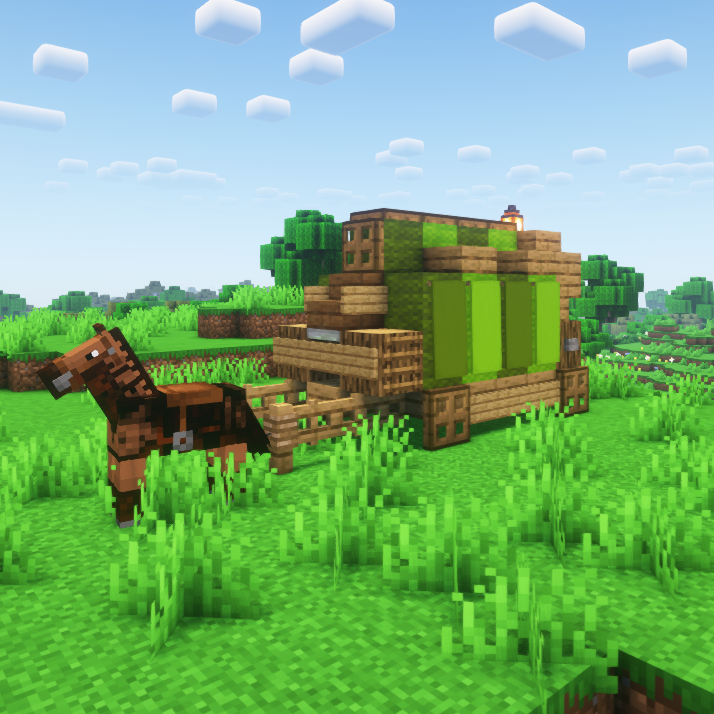
Small Wagons
Adds unique wagons to different biomes
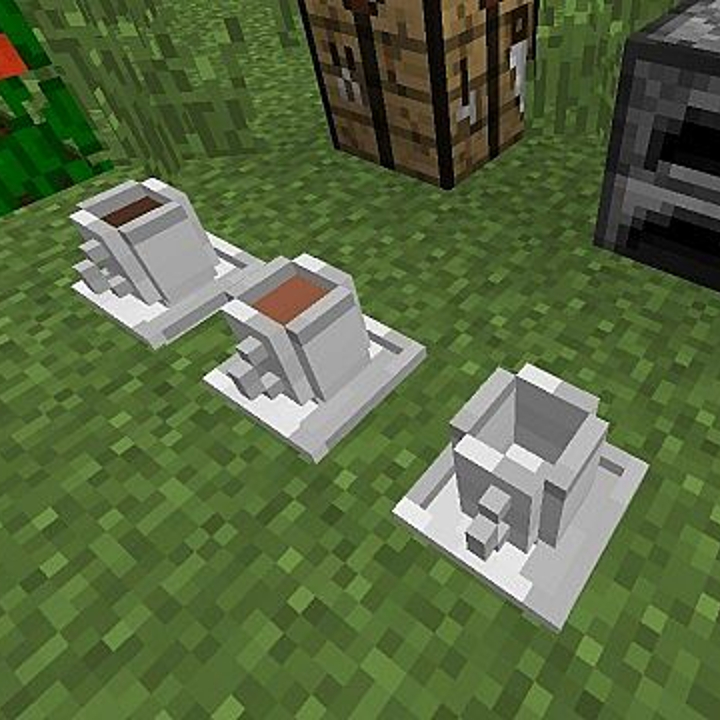
Richard's Coffee & Tea Mod
A mod that adds coffee and tea to Minecraft along with everything required to create them. Includes Coffee and Tea bushe...
New Lodestone Recipe
Changes Lodestone recipe to its new one in snapshot 25w02a

Crushed Astra
Create's Crushed raw ores add in Ad astra

Colony Guards & Pets - Ice n Fire Optional
Integrates MineColonies guards with tamable creatures from Ice and Fire, Alex's Mobs, and other mods. Assign pets to fol...

MnmUtils
A mod utility library
