
Create: Redstone Link Tablet
ModA smart-home tablet for Create's Redstone Links — toggle named apps and multi-link groups from an app-style GUI.
Type
Mod
Modrinth Downloads
2,284
Modrinth ID
hovmfNG2
Last Updated
Aug 19, 2026
Description
PLEASE MAKE SUGGESTIONS I WOULD LOVE TO DEVELOP THIS MOD FURTHER https://discord.gg/sazf4cgFtK
A smart-home control panel for your Create contraptions.
The Link Tablet is a handheld device with a real touchscreen OS that drives Create's Redstone Links remotely. Lights, doors, trains, farms, the entire factory — name them, give them an icon, and control them from one screen, anywhere in link range. It boots to a Home screen of apps — signals, gauges, a clock, a calculator, with more from the built-in App Store — mounts on walls where tablets merge into one wall-sized display, and pins a mini-tablet to your HUD so you can flip switches without ever opening a GUI.
📱 A pocket OS
The tablet opens to a Home screen — an app launcher you arrange yourself. The App Store tile lists everything installed with a description and a one-click Get/Remove; your Home screen is yours, per tablet. The apps:
- Signals — the control grid below; every tablet starts with it.
- Clock — daily alarms, a world clock with every real timezone (searchable), a countdown timer, and a stopwatch. Alarms and timers ring even with the tablet closed, and keep real wall-clock time across sessions. A placed tablet showing the Clock is a wall clock — big digital time and date on the glass, merged walls included.
- Calculator — a proper four-function calculator with click buttons and full keyboard entry; a placed tablet shows its live tape on the wall.
- Gauges — the reverse of Signals: live dials that listen on Redstone Link frequencies and show the received 0–15. Name each dial, pick its channel and color. Held tablets hear what you'd hear; placed tablets hear what a real link at that spot would — and merged walls make great factory dashboards.
Placed tablets show whatever app they're on right on the glass — tap it to open the app, tap the bezel ring to go Home — and the wall screen follows your GUI navigation, so the kiosk and the menu always agree.
🎛️ Signals, not levers
- Up to 32 signals per tablet (and 32 more per tablet on merged multi-tablet screens), each with a name, color, an optional item icon, and its own state — shown as an icon grid or a list of toggle switches, with drag-to-rearrange in both layouts.
- Four signal types, cycled right in the editor:
- Toggle — classic on/off with a persistent state.
- Hold — transmits only while you hold the button. Doorbells, dispensers, one-shot pulses — a disconnect can never leave the signal stuck on.
- Slider — the signal follows the slider, 0 to 15. Dim lights, throttle trains, meter item flow.
- Timer — tap it and it transmits for a set time (0.1 s to 30 s), then switches off by itself. Tap again to restart the clock.
- Scenes — one signal can drive up to 8 frequencies at once ("Shut down the factory", "Open all doors").
- Signal links — signals can drive each other: link up to 8 targets per signal and set each to turn ON, turn OFF, or follow the tapped signal's new state. One tap on "Night mode" turns the lights off, the alarm perimeter on, and fires the door-timer — links chain, loops are safe, and linked tiles wear a little chain glyph. A linked signal doesn't even need a frequency of its own: make pure scene master buttons that only drive other signals.
- Per-signal strength — when several signals drive the same frequency, the strongest wins, exactly like stacked Redstone Links.
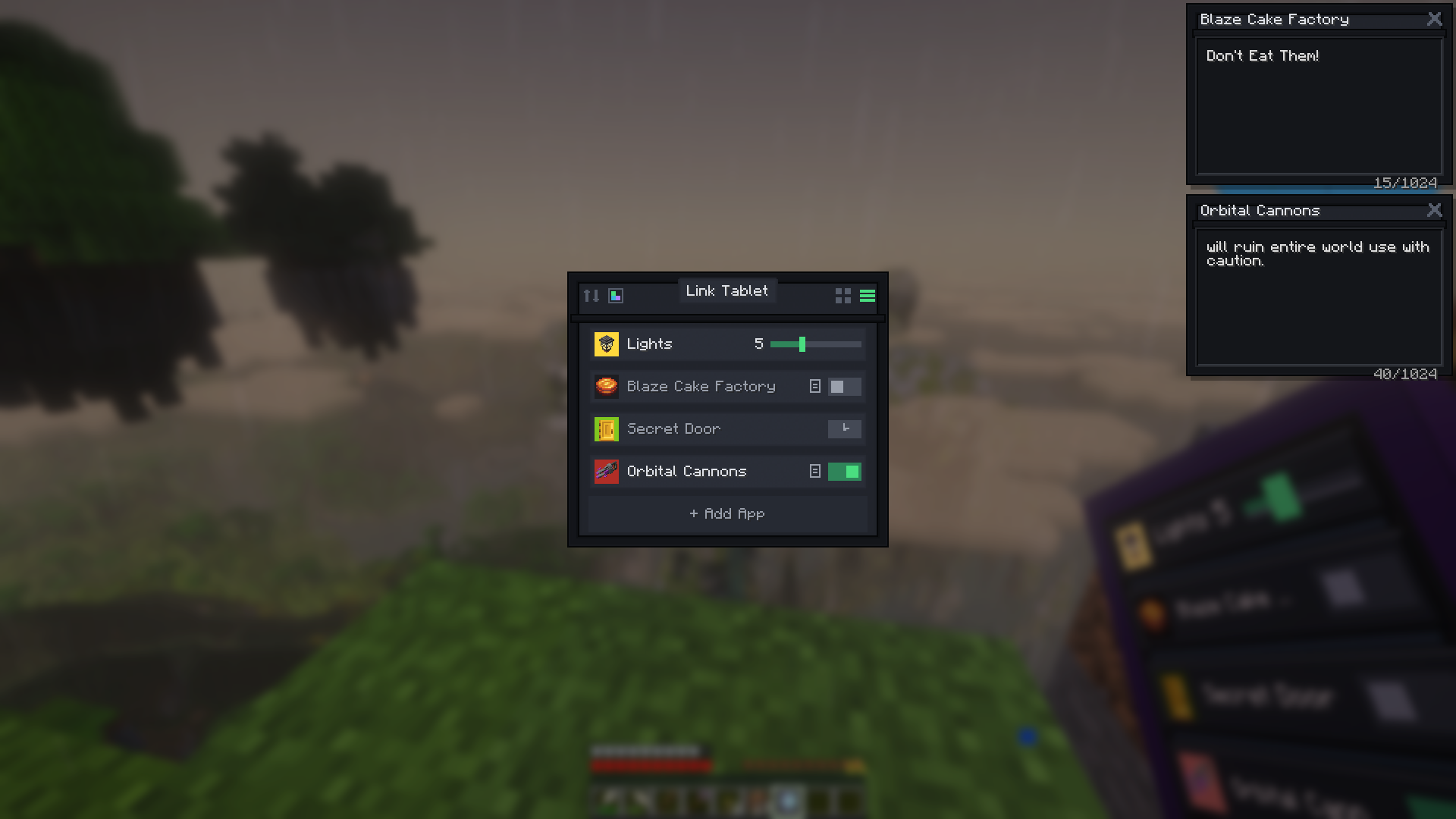
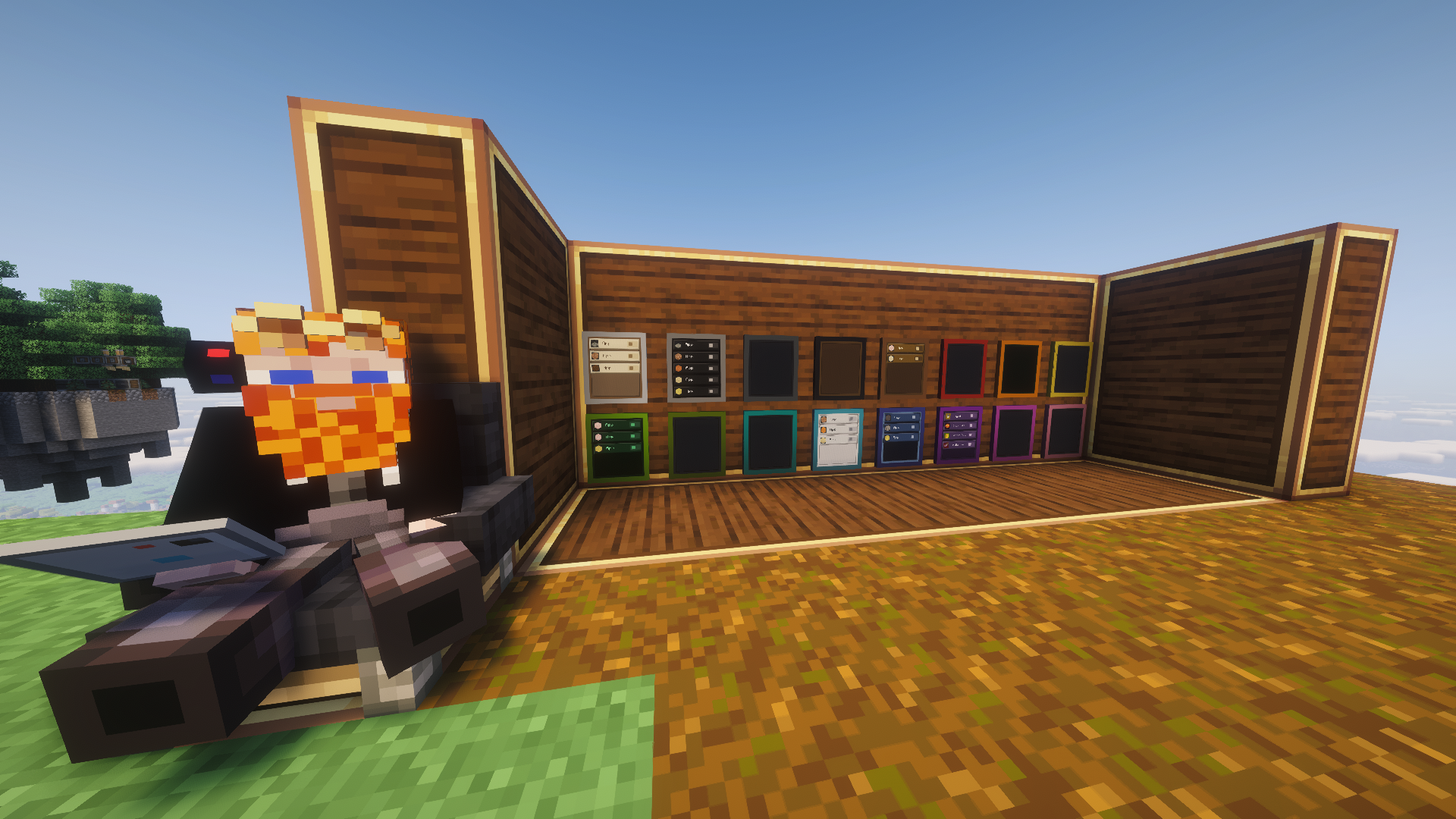
You can see all of them working in the screenshot above — a slider mid-drag, a timer, and toggles side by side.
📡 Real Create frequencies
Signals tune to Create's item-pair frequencies — anything a Redstone Link or Linked Controller can trigger, the tablet can too:
- The signal editor includes your real inventory with vanilla drag mechanics: drop an item on the frequency slots (they take a copy — nothing is consumed), or use the searchable all-items picker for things you don't carry.
- Running JEI or EMI? Drag an item straight from the ingredient panel onto a frequency slot — no need to own it at all.
- One-item frequencies work, matching Create's own links.
- Frequencies carry the full item, components included — frequency-card mods (Create Unique Cards and friends), dyed items, and renamed gear all count as distinct channels, exactly matching what Create's links distinguish.
📋 Tip — quick-add: right-click any Redstone Link (or anything with a link frequency, like elevator contacts) while holding the tablet — the editor opens with that frequency pre-filled and a name suggested. Just hit Save.
🎚️ Sliders you can feel
Sliders drag live in the GUI, and on a placed tablet you click-and-slide right on the glass: hold the button on a slider's tile and sweep your crosshair — the value tracks it exactly. Every slider shows its numeric signal level wherever it renders, and you can limit one to a min/max range — set a minimum above 0 and that machine never fully turns off.
📝 Sticky notes for your factory
Every signal can carry a free-text note, opened from a little glyph on its tile. Notes are floating windows: drag them by the title bar, open several at once, and they stay with you — over the tablet, over your inventory and other screens (fully editable there), and pinned read-only on your HUD while you play. They politely stay out of settings menus and other screens where they don't belong. Perfect for "flush the sorter before enabling" warnings or a train schedule — you can see two of them pinned in the screenshot up top.
📌 Pin it to your HUD
The pin button keeps a floating mini-tablet on your screen while you play — and it's per-app: pin Signals for live switch rows, pin Gauges for a heads-up dial cluster (a vehicle dashboard while you drive), pin the Clock, pin a working Calculator mini-pad, or pin the launcher itself as an app dock. The window is draggable anywhere and remembers its spot and pin across sessions. Press the "Use Pinned Tablet" key (default B) to free your mouse chat-style and tap toggles, drag sliders, or hold buttons — mid-mining, mid-flight, no GUI ever opens. It's also clickable with the normal cursor over your inventory or chat, and a right-click on any row jumps into the full tablet interface. (There's an "Open Tablet" keybind too, unbound by default, that opens the tablet from anywhere in your inventory.)
Pin a placed tablet and it dims when you wander out of edit range; pin a carried one and it follows the item around your inventory.
✨ The screen is real
The tablet's physical screen isn't a texture — it renders your actual signals, live, on both the held and the placed tablet. Tiles size themselves to the signal count (a few signals get big tiles; a full tablet converges on a dense grid), active signals glow, timers glow for as long as their pulse runs, and each tablet remembers whether you last used it in grid or list view.
And on a placed tablet, the screen is touchable: tap a signal right on the glass to toggle it, hold a Hold button, slide a slider — no GUI needed. Tap the bezel for the full interface.
🧱 Place it on the wall
Sneak + right-click any surface to mount the tablet on a wall, floor, or ceiling — it becomes a block that transmits from its own position while the chunk is loaded, and its screen glows whenever a signal is running. Sneak + right-click with an empty hand picks it back up; everything survives the trip.
Got a Create wrench? Wrench the glass to rotate the screen content 90°, wrench the edge to spin the tablet — wall tablets physically flip between portrait and landscape.
🎯 Aim it anywhere
Flat against the wall not doing it for you? Craft a Swivel Mount — an iron nugget atop two brass sheets — and place the empty stand on any floor, wall, or ceiling, then click a tablet onto it (or use the mount directly on a tablet that's already placed). Either way the tablet pops onto a little ball-joint stand. Wrench the glass and it swings around to aim straight at your eyes, wherever you're standing — walk to your favorite spot at the control desk, one click, perfect angle. Wrench the bezel to flip between portrait and landscape, and sneak-wrench the glass to rotate the screen content.
Stands are furniture: sneak + right-click the tablet and it comes off leaving the empty stand in place, ready for the next tablet — swap dashboards between consoles like cartridges. Grab the stand itself to take everything.
The tilted glass stays fully touchable — taps, holds, and click-and-slide all land exactly where you're looking. Mounted tablets keep to themselves (they never merge into a wall display), so they're perfect as angled standalone consoles in front of one.
And here's the party trick: power the mount with redstone and the screen follows you — it smoothly tracks the nearest player like the enchanting table's book, gliding as you walk the control room. Cut the power and it freezes exactly where it's pointing: aim it by standing in the right spot, lock it with a lever.
🖥️ One screen, many tablets
Mount tablets side by side — same wall, floor, or ceiling; new ones auto-match their neighbor's orientation — and they merge into one big display, up to 4 wide by 3 tall: a single continuous glass panel with a case-colored bezel frame and no seams. Your signals spread across the whole surface at bigger tiles, taps and click-and-slide work anywhere on the glass, list rows run its full width, the entire wall lights up together — and every merged tablet raises the signal cap by another 32. Dye the lead tablet and the whole frame dyes; wrench the glass and the whole screen's content rotates.
Merging is always safe: every tablet keeps its own signals dormant and gets them back the moment it's split off. And it's always your choice — a chain-link button in the screen header breaks a merged surface back into independent tablets, or keeps a single tablet standalone so you can build a bank of separate dashboards side by side.
🎨 Make it yours
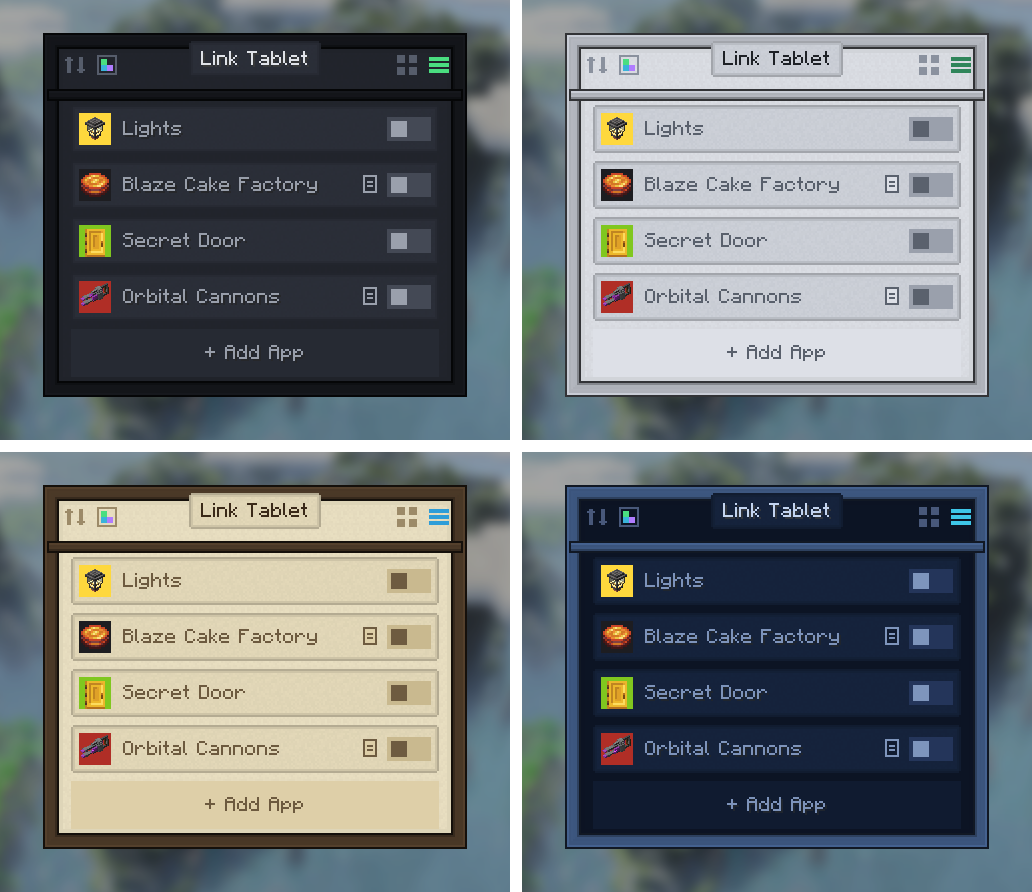
- 8 UI themes — Dark, Light, AMOLED, Brass, Terminal, PurpleFox, Parchment, and Avionics — stored per tablet, recoloring the GUI and the physical screen for everyone. The whole interface is styled in Create's own visual language: wooden rails, parchment plaques, beveled buttons.
- 16 dyed cases — craft the tablet with any dye to recolor it, signals preserved, re-dye whenever. Dunk it in a water cauldron (or an encased fan's washing stream) to strip the dye again.
- A full set of UI sounds — toggle clicks with distinct on/off pitch, a save chime, frequency ticks, and a faint click nearby players hear when someone flips a signal.
- Name your tablets — rename one on an anvil and the name becomes its title in the GUI and on the pinned overlay. "Smeltery", "Train Yard", "Base Defense" — the name survives placing and picking up.
🏭 Getting started
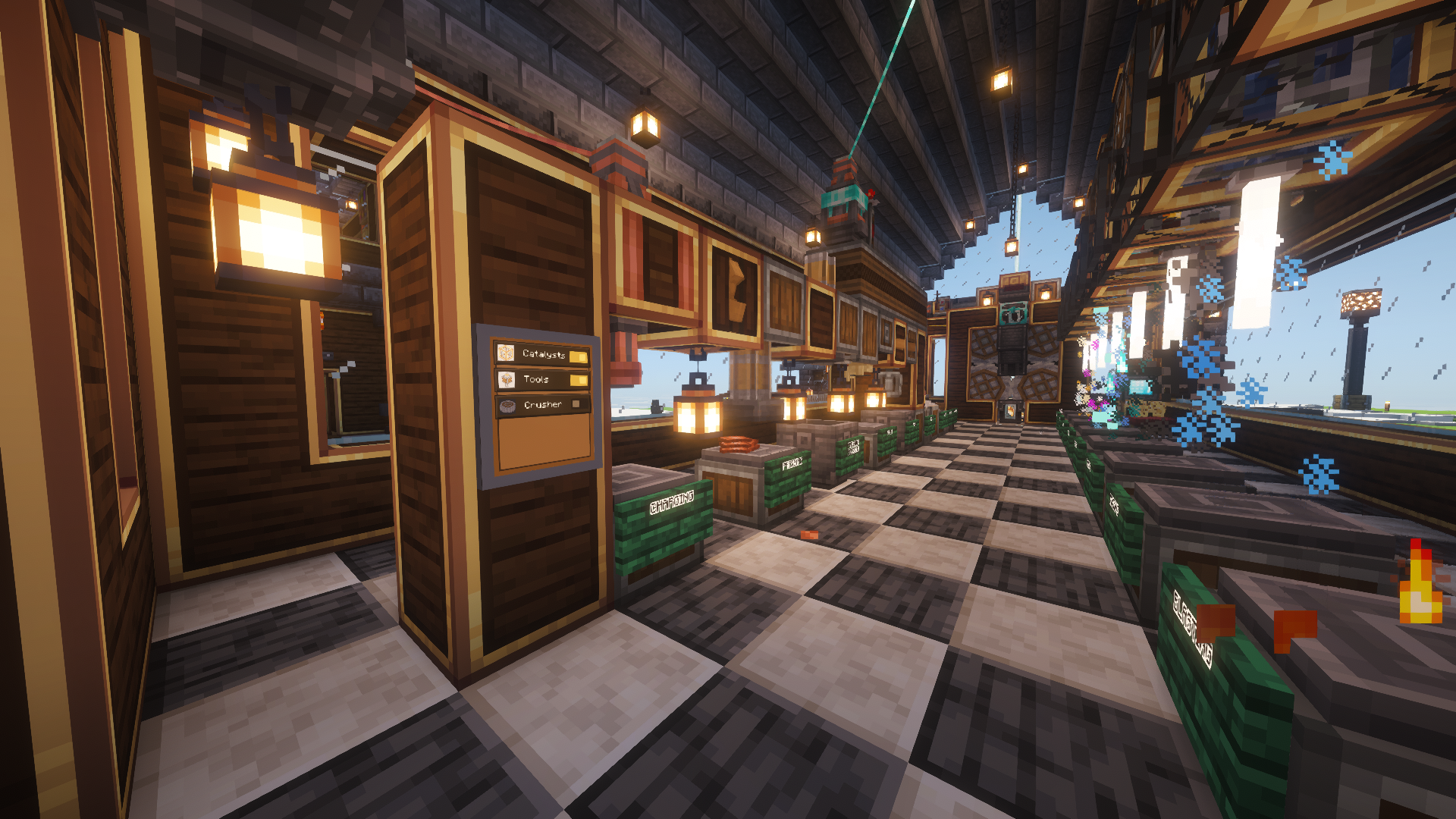
The tablet comes off a real assembly line — this is brass-age manufacturing, not crafting. Shape a Tablet Case from five brass sheets, then send it down a belt past three Deployers:
- Link Logic Board — a Redstone Link and Linked Controller rehoused with an electron tube. The radio.
- Clockwork Cell — cogwheel, polished rose quartz, and a winding key. The power.
- Quartz Display — tinted glass backed with rose quartz, screwed on last. The screen.
The in-progress tablet visibly gains each part as it moves down the line, and JEI/EMI shows the whole sequence on the tablet's page. (The finished tablet lives in the vanilla Redstone creative tab too.)
Then:
- Right-click to open the tablet, tap + to create a signal.
- Pick the frequency items (exactly like tuning a Redstone Link) and hit Add — repeat to stack a scene — then Save.
- Set your receiving Redstone Links to the same frequency.
- Left-click toggles, right-click edits.
There's also a Ponder scene — hold W over the tablet item — that walks through mounting, linking, and the quick-add shortcut.
While a signal is on and the tablet is anywhere in your inventory, you are the transmitter — range and chunk behavior match Create's handheld Linked Controller. Mounted tablets transmit from the block instead.
📦 Compatibility
- Minecraft 1.21.1 · NeoForge · Java 21 · requires Create 6.x (server and client).
- Full multiplayer support: server-authoritative edits, per-player transmitters.
- Plays nicely with other link-network senders — receivers take the strongest signal, like stacked Redstone Links.
- Frequency-card mods (component-based frequency items) work out of the box.
- Optional JEI and EMI integration: drag ingredients straight into the frequency slots.
- MIT licensed, free to use in any modpack.
❤️ Credits
Huge thanks to the Create team — this addon stands on their Redstone Link network and visual language. Go support the original mod!
Banner lettering uses the community Minecraft Ten font art by xllifi (CC-BY 4.0).
Created by FryD42 · MIT licensed — free to use in any modpack.
Compatibility
Mod Loaders
Game Versions
Recommended Gear
AffiliateHardware and extras that pair well with this mod.
As an Amazon Associate I earn from qualifying purchases.
Screenshots
Similar Mods

Sophisticated Backpacks easier upgrade
You can upgrade Diamond backpack to Netherite backpack on crafting table
Dynamic Trees - Jaden's Nether Expansion
Compatibility mod between Dynamic Trees and Jaden's Nether Expansion
Syconn's Star Wars Mod
Travel To a world Far Away. Meet your favorite Star Wars Characters and adventure in custom dimensions and biome.
TNT extension
TNT extension adds a few new TNT tools
SOTW - Stamina of the Wild (Indefinite Hiatus)
A simple mod about adding a new stamina system.

Cyv
Port of CyvClient-1.8.9 parkour features to forge and fabric.
